Tired of having your eyes strained by the brightness of your screen, in broad daylight as much as at night? Look no further, the solution is here: choose the dark theme for your Cloud.
Step 1: Go to the settings
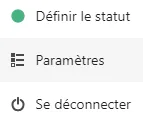
→ First, click on your profile icon at the top right of your screen.
→ You will then see this drop-down menu (see photo on the left)
→ Go to settings
Step 2: Go to the 'accessibility' menu
To do so, you simply need to choose the matching category in the menu on the left of your screen (see photo below).
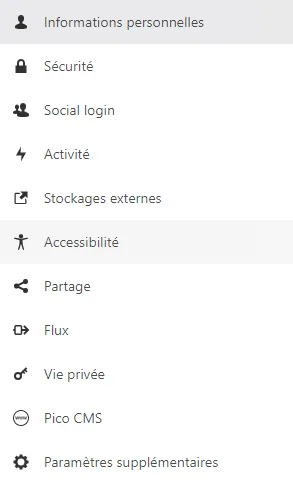
← Click on 'Accessibility'
Step 3: Change the theme
You will then be facing this interface, where you will be able to:
→ Increase the contrast of the theme for easier navigation
→ Choose a dark theme to reduce the impact of brightness on your eyes
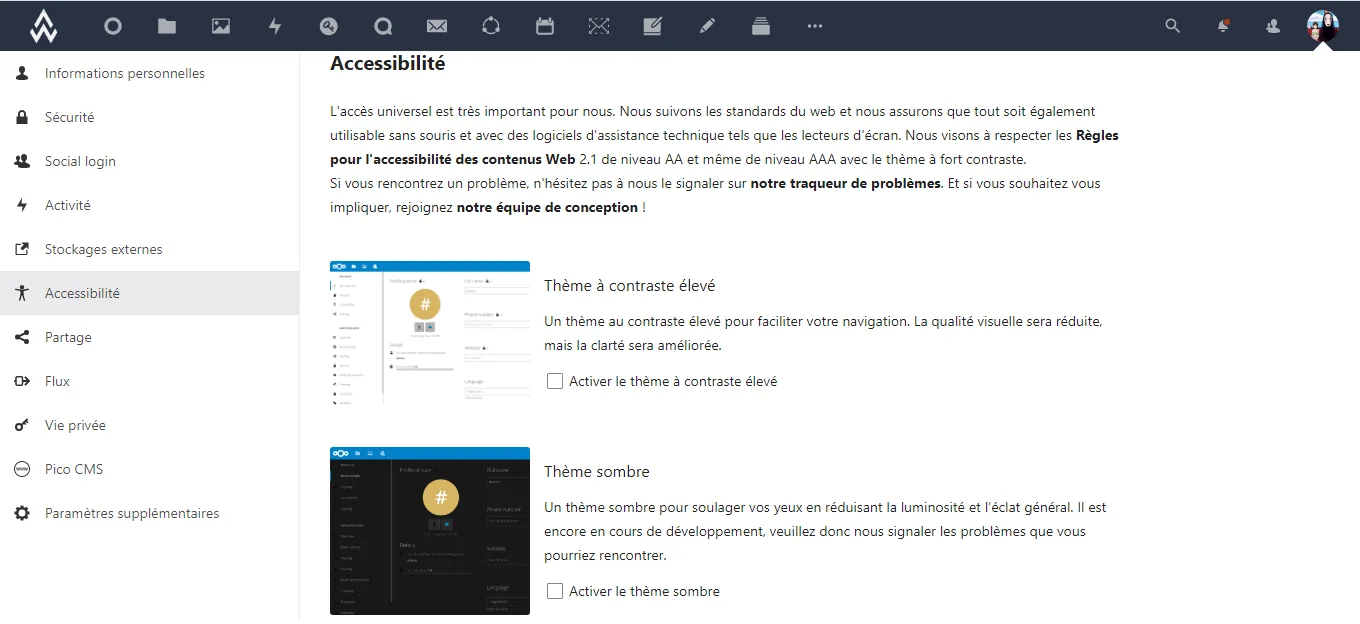
In order to get a dark theme, simply check the 'Enable dark theme' box.
One extra tip:
You should know that it is also possible to customize your Cloud even more completely.
For example, in the same menu, it is possible to enable the font for dyslexic readers (see photo below).

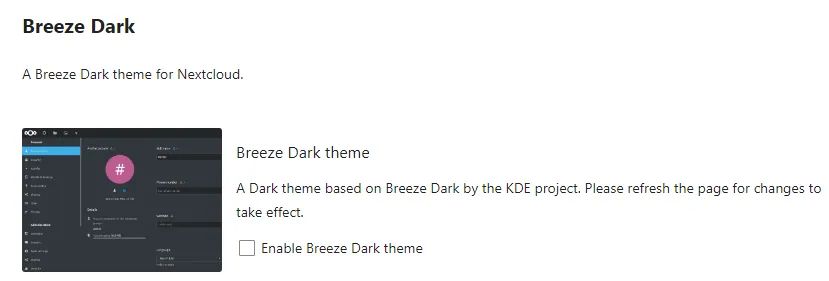
You can also add your own themes, or themes created by other members of the community (example below with 'Breeze Dark').