
Together we are going to look at the essential aspects that you absolutely must know as someone being introduced to the mysteries of computing.
What is Linux?
Linux powers a variety of computer systems, from light bulbs to firearms, from laptops to large computing centers. Linux powers everything from your telephone to your smart refrigerator.
In desktop computing, Linux offers an alternative to commercial operating systems such as Windows and macOS.
Linux comes from some of the oldest computer operating systems of the 1960s and 1970s, and therefore keeps their core philosophies of security, customization and system stability at the user level.
Which Linux distributions should you use?
The Linux kernel is like an engine. A distribution is the actual vehicle that houses the engine.
So which Linux distribution should you choose? Linux supports several hundred distributions, each one optimized for a specific use case:
- Ubuntu: A modern Linux distribution, easy to install and to use. Our choice
- Linux Mint: Requires little computer expertise, is easy to install, easy to use and has a desktop that looks familiar to Windows users.
- Debian: For those looking for a truly free Linux distribution without proprietary drivers, firmware or software, Debian is for you.
- openSUSE: A stable and powerful Linux distribution. Not as easy to install as Mint and Ubuntu, but a good alternative all the same.
- Fedora: The most up-to-date Linux distribution, with all the new concepts incorporated as early as possible.
- Mageia: Risen from the ashes of the former great Mandriva Linux. Easy to install and easy to use.
- CentOS: As with Fedora, CentOS is based on the commercial Linux distribution Red Hat Linux. Unlike Fedora, it is designed for stability.
- Manjaro: Based on Arch Linux, Manjaro offers an excellent balance between ease of use and up-to-date software.
- LXLE: Based on the lightweight Lubuntu distribution, it provides a complete Linux distribution for older hardware.
- Arch: A rolling release distribution, which means that at no point do you have to install new versions of the operating system, because it updates itself. Harder for the new user to master, but very powerful.
- Elementary: Linux for people who like a Mac-style interface.
What is a desktop environment?
A typical Linux distribution includes several different components.
A display manager signs you in, while a window manager governs the windows, the panel, the menus, the dashboard interfaces and the main applications. Many of these elements are grouped together to create a desktop environment.
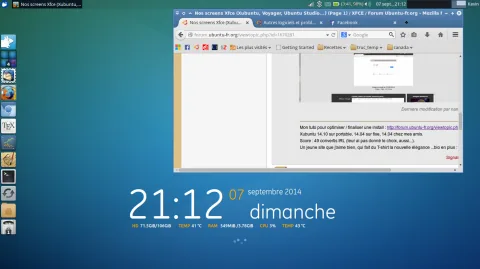
Ubuntu XFCE desktop.
Some Linux distributions come with a single desktop environment (although some are available in the software repositories), while others offer different versions of the distribution suited to different desktop environments.
Desktop environments often include Cinnamon, GNOME, Unity, KDE, Enlightenment, XFCE, LXDE and MATE.
Cinnamon is a more conventional desktop environment that closely resembles Windows 7, with a panel at the bottom, a menu, system tray icons and quick launch icons.
GNOME and Unity are fairly similar. They are modern desktop environments that use the concept of launch icons and a dashboard-style display for selecting applications. There are also core applications that fit well with the general theme of the desktop environment.
KDE is a classic-style desktop environment with many customized features and a main set of applications that are all highly customizable.
Enlightenment, XFCE, LXDE and MATE are lightweight desktop environments with panels and menus.
How to install software under Linux
Linux does not install software in the same way as Windows. A package manager accesses repositories that archive the various software applications that work on a given distribution. The package management tool provides a mechanism for searching for software, installing software, keeping software up to date and removing software.
Each distribution provides its own graphical tool. There are common command line tools used by many different distributions.
For example, Ubuntu, Linux Mint and Debian all use the apt-get package manager. Fedora and CentOS use the yum package manager. Arch and Manjaro use Pacman.
The Linux command line
Given its long heritage and the diversity of approach of modern desktop environments, much of Linux still works from a shell session. In the macOS world, these sessions are called the terminal; in Windows, the command prompt.
A short history lesson
During the formative years of the computer industry, one of the first operating systems was called Unix. It was designed to work as a multi-user system on mainframe computers, with users connecting to it remotely through individual terminals.
These terminals were fairly basic by modern standards: just a keyboard and a screen, without being able to run programs locally. Instead, they simply sent keystrokes to the server and displayed on the screen all the data received. There was no mouse, no fancy graphics, not even a choice of color. Everything was sent as text and received as text. Clearly, therefore, all the programs that ran on the mainframe had to produce text as output and accept text as
input.
Compared with graphics, text is very light on resources. Even on machines from the 1970s, running hundreds of terminals over extremely slow network connections (by today's standards), users were still able to interact with the programs quickly and efficiently. The commands were also very concise, in order to reduce the number of keystrokes needed, which made people's use of the terminal faster still. This speed and this efficiency are one of the reasons why this text interface is still widely used today.
When they were connected to a Unix mainframe through a terminal, users still had to handle the kind of file management tasks that you might now carry out with a mouse and a few windows. Whether it was creating files, renaming them, placing them in subdirectories or moving them on disk, users in the 1970s could do everything entirely with a text interface.
Each of these tasks required its own program or command: one to change directory (cd), another to list its contents (ls), a third to rename or move files (mv), and so on. In order to coordinate the running of each of these programs, the user would sign in to a single master program that could then be used to launch any of the others. By encapsulating the user's commands, this "shell" program, as it is called, could provide features common to all of them, such as the ability to pass data from one command directly to another, or to use special wildcard characters in order to work with many files of the same name at once. Users can even write simple code (called "shell scripts") that could be used to automate long series of shell commands in order to make complex tasks easier. The original Unix shell program was simply called sh, but it has been extended and replaced over the years, so on a modern Linux system you will probably use a shell called bash. Do not worry too much about which shell you have; all the content you will see here will work on more or less all of them.
Linux is a kind of descendant of Unix. The core part of Linux is designed to behave in the same way as a Unix system, so that most of the old shells and other text-based programs run on it quite happily. In theory, you could even connect one of those old terminals from the 1970s to a modern Linux machine and reach the shell through it. But these days it is far more common to use a software terminal: that same old Unix-style text interface, but running in a window alongside your graphical programs. Let us see how you can do that yourself.