
想去邻国的 Netflix 逛一逛?那就考虑安装一个 VPN 吧。如果您有兴趣,本文正是要带您完成这件事,使用的工具是 WireGuard。

一 —— 安装
首先,需要从以下地址下载软件:https://www.wireguard.com/install/
Windows 版 WireGuard 可在 Windows 7、8、8.1、10、2012、2016 和 2019 上运行,并提供 64 位和 32 位两种版本。
注:WireGuard 在其他所有平台上同样可用(Apple、Android、Linux、Mac OS X)。
二 —— 导入隧道
现在我们来配置您的隧道。要获取添加隧道所需的「.conf」文件,请访问以下链接:
德国:https://my.awoui.fr/index.php/s/qLZjcRHy9NtS7NZ
美国:https://my.awoui.fr/index.php/s/7Kmcerss2PzR8Ej
新加坡:https://my.awoui.fr/index.php/s/a4wREaQsd5iiXNf
如果您使用我们提供的文件,那么只需要第一个文件,也就是「peer100.conf。」
请下载它,并放在随手可取的位置。
接着,在软件界面中点击:
导入隧道 → 从文件导入隧道
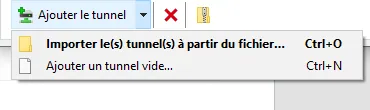
导入「peer100.conf」文件,随后您应当能在界面左侧的隧道列表中看到它。
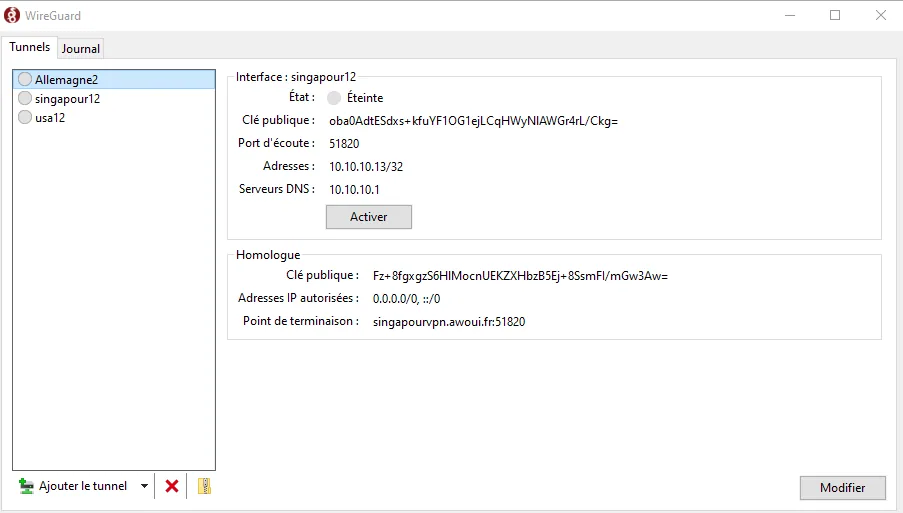
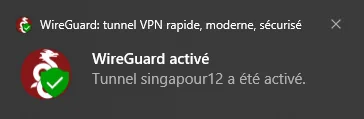
现在,您只需点击「启用」按钮,就会收到一条通知,告诉您已成功连接(见下图)。
那么现在,怎样才能看出它是否正常工作呢?
我们建议您访问这个网站:https://ipcost.com/fr
好了,目前就介绍到这里,请尽早回来了解更多新功能。