
VeraCrypt is a free, open source and cross-platform data encryption tool.
It is an alternative to TrueCrypt, an encryption tool that was popular on every operating system and whose development was suddenly stopped, after which users began looking for another solution. Most TrueCrypt users moved to VeraCrypt, because it is the closest you can get in terms of features and user interface. It was launched after TrueCrypt was discontinued.
VeraCrypt is an easy tool to use. In this article, we will go through the process of installing and using VeraCrypt on any Linux distribution, such as Debian, Arch, Ubuntu, Linux Mint, and so on. So let's get started.
How to install VeraCrypt on Linux
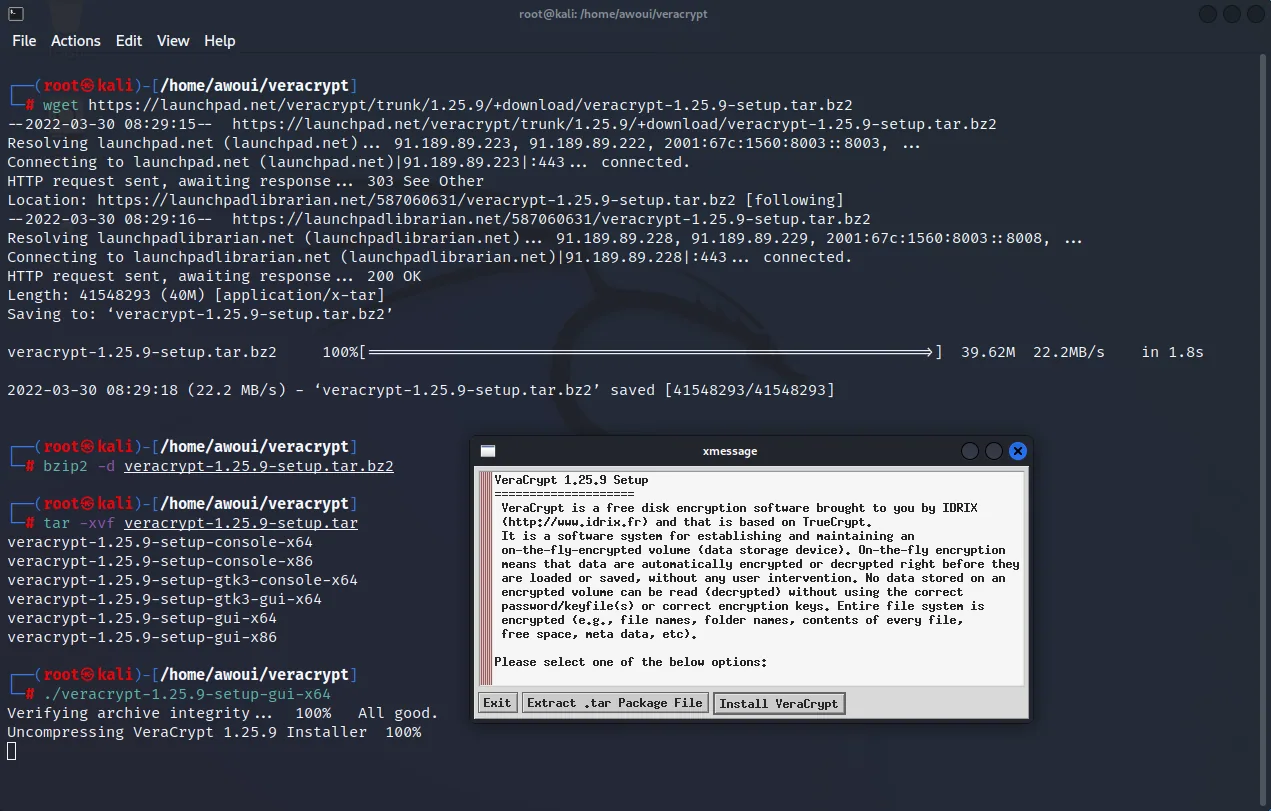
After downloading the file from the official website, extract it somewhere on your hard drive. You can install it through the terminal or through the graphical interface. If you want to install VeraCrypt through the Terminal, use the console file; otherwise use the gui files. In this article, I am going to install using the GUI file.
Downloading with wget from the site https://veracrypt.fr/en/Downloads.html:
wget https://launchpad.net/veracrypt/trunk/1.25.9/+download/veracrypt-1.25.9-setup.tar.bz2Extracting the installation files with bzip2:
bzip2 -d veracrypt-1.25.9-setup.tar.bz2Running the installation script:
./veracrypt-1.25.9-setup-gtk3-gui-x64Your file name may be different if you are using a different version of VeraCrypt. You should now see the graphical interface for installing VeraCrypt.
Click "Install VeraCrypt".
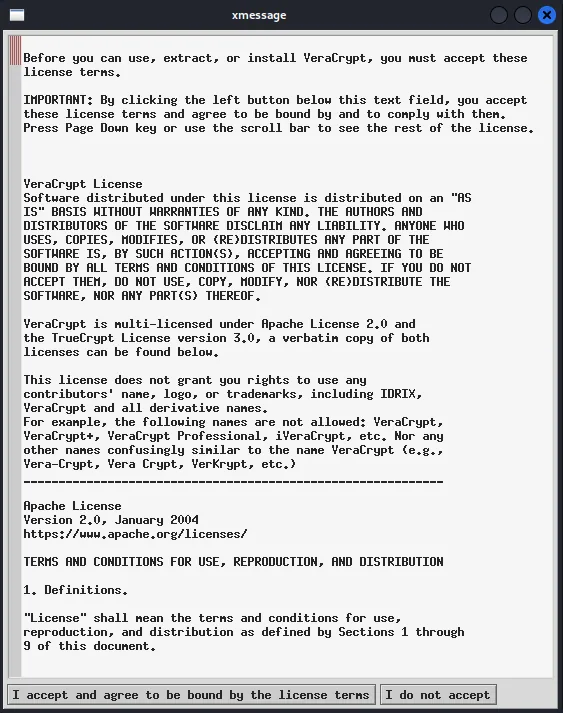
Accept the VeraCrypt terms and conditions.
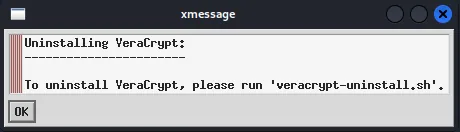
Start the installation by pressing OK.
The installation runs in a separate console. It takes only a few seconds to complete. Press Enter to close the console after the installation.
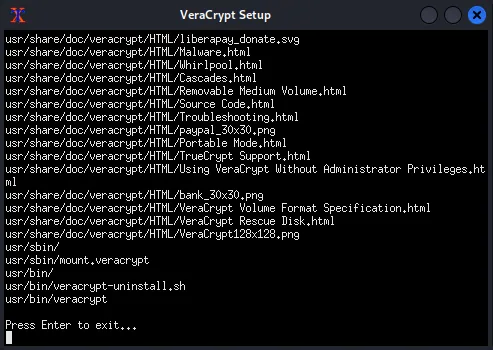
VeraCrypt is now installed. We can now move on to using it.
How to use VeraCrypt
To create an encrypted volume from a file, that file must already exist. So we are going to create it, empty, with the touch command:
touch Mon_Volume_Chiffré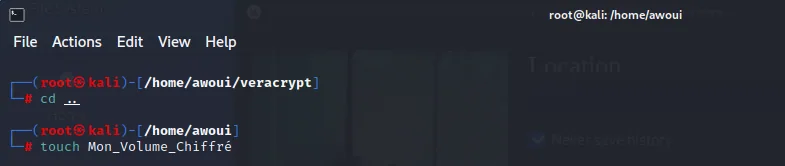
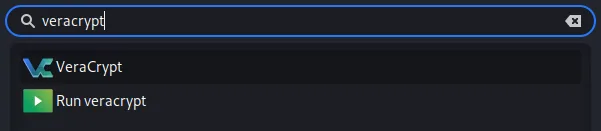
From the Application menu you can find and then open VeraCrypt.
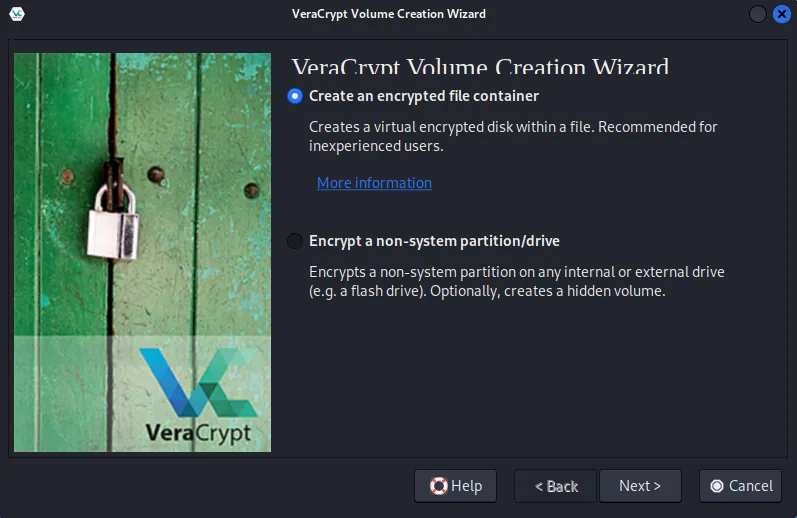
We are going to start by creating an encrypted file container, which creates an encrypted virtual disk from a file.
Choose the option "Create an encrypted file container".
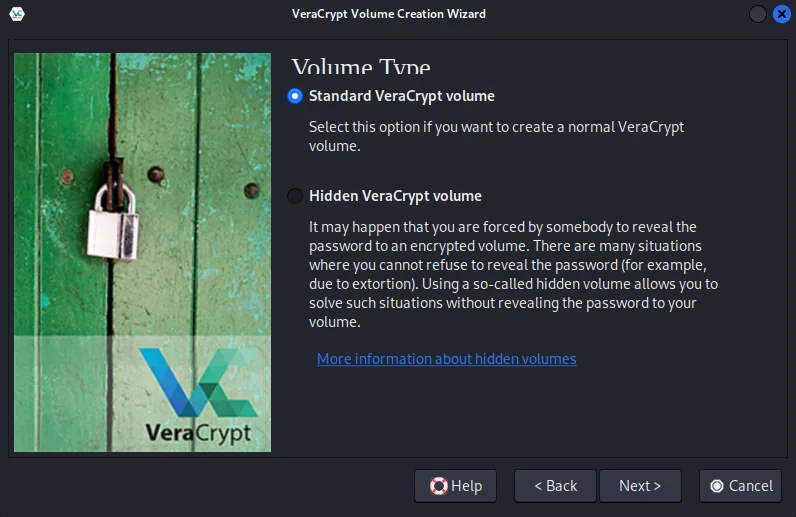
You can create two types of encrypted file containers with VeraCrypt. The first is the standard VeraCrypt volume type, which behaves like a file and is visible to everyone. In the standard VeraCrypt volume, you can keep your file and lock it with a strong password. The second type of container is the VeraCrypt hidden volume. As its name suggests, it is hidden. You can guess what advantages you get with the hidden volume. It is not visible to anyone.
We are going to create a standard volume. Select "Standard VeraCrypt volume".
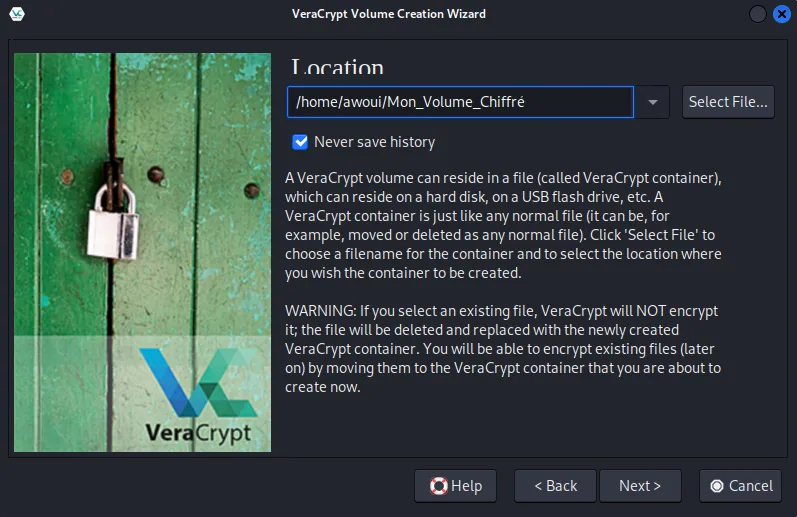
Indicate the location of the file you created earlier.
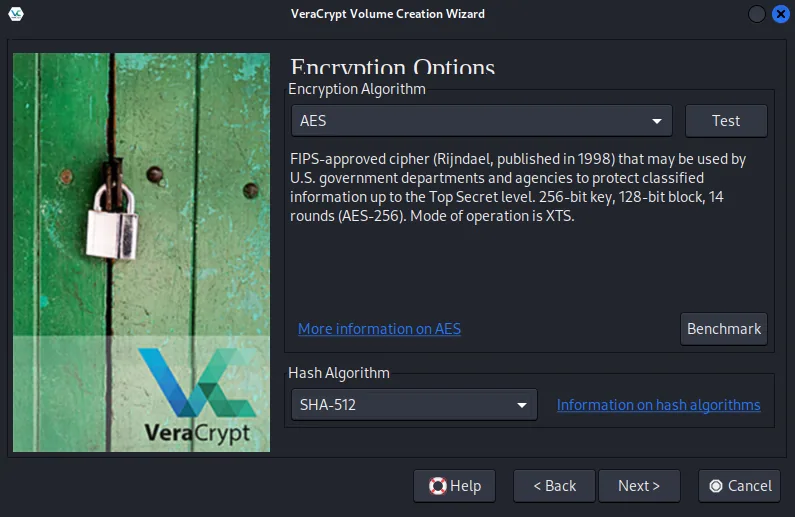
At the next step, select the encryption algorithm. Here, AES. Then select the hashing algorithm, here SHA-512.
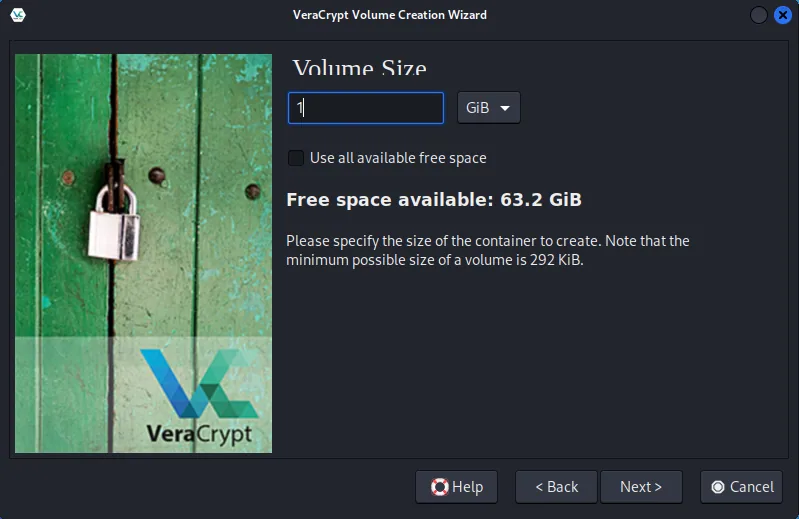
Now select the size of your encrypted volume. The minimum container size is 292 KB.
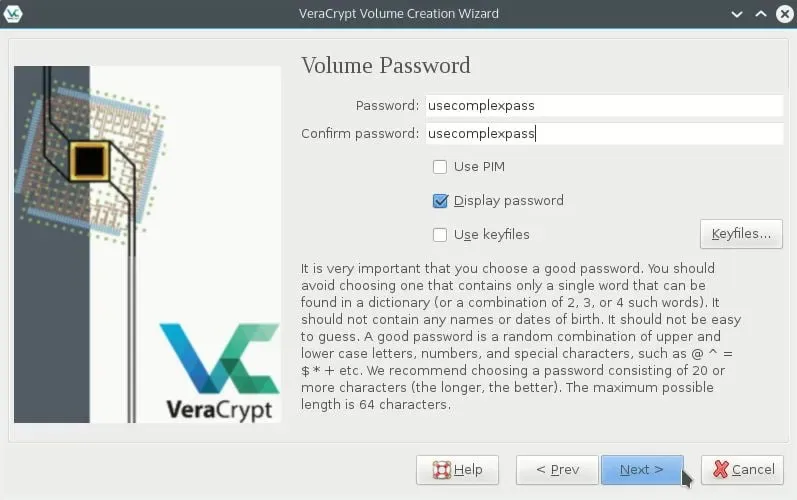
Now set a complex password for your container. You will need this password to access the files stored in the container. You can also use a key file to open your encrypted file container. But I do not consider this option safer, because you have to secure that file, and in case someone else obtains this key file, your encrypted container can be unlocked. It is better to create a complex password that you will remember.
Select the file system for your container. You can choose FAT, because it works with most operating systems.
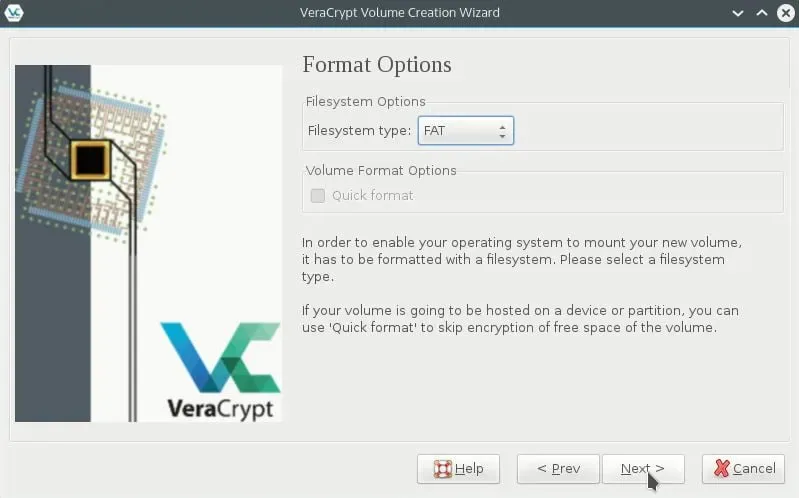
Now move your mouse around the window. This will increase the cryptographic strength of the encryption keys. The longer you move it, the better.
Mounting the encrypted file container
From VeraCrypt, browse to and select the file you created and encrypted. Remember that you created your text file inside an encrypted container.
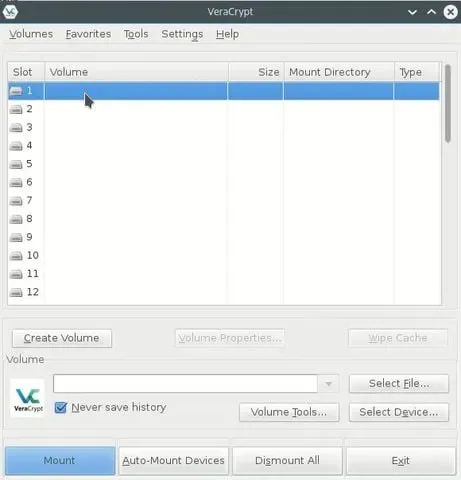
Note that the number of bytes in the text file is now 1 GB. This is now the container. Select it and click mount.
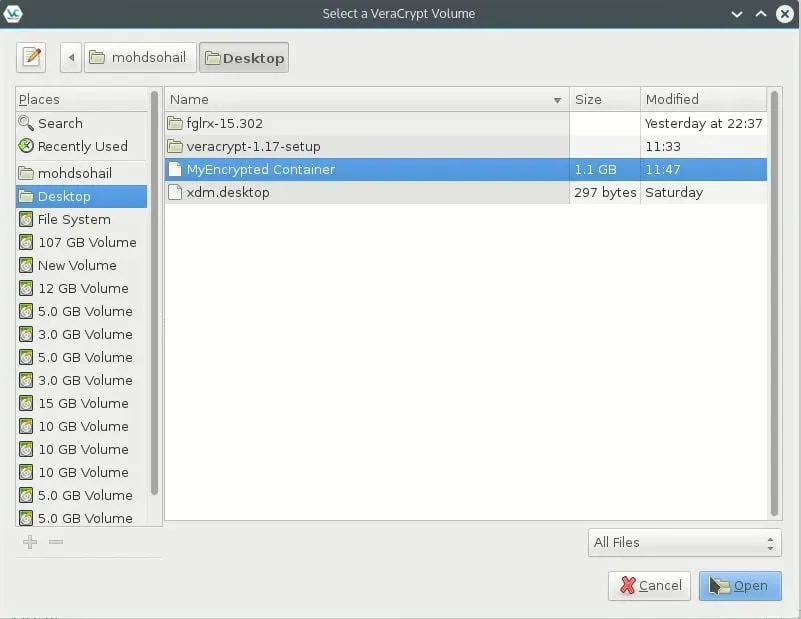
Click mount after browsing to the container.
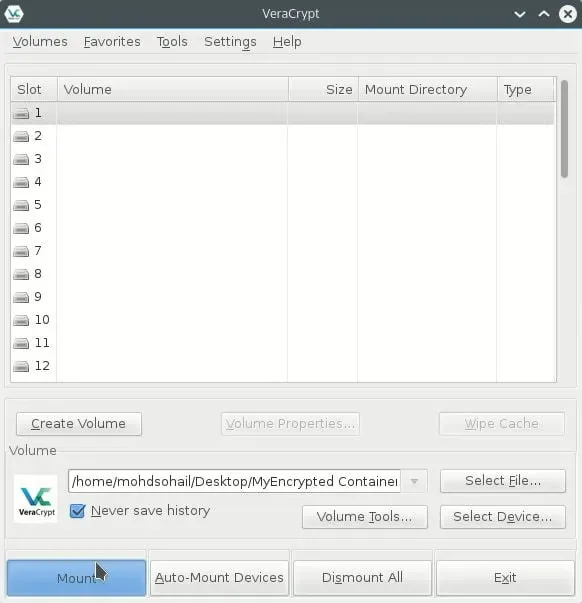
Enter the password you set when creating the container. Once you have entered the correct password, the container will be mounted and ready to use.
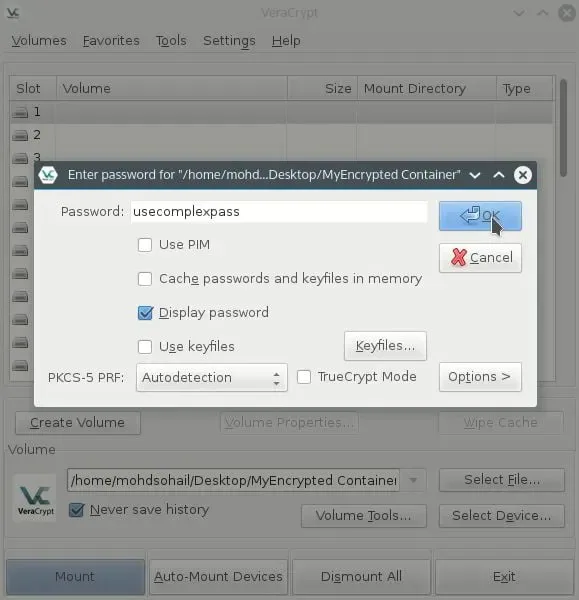
Double-click the mounted volume to open it.
You can copy and paste files into this volume. All the files are secured when you unmount this volume. To access the files in the container, you will have to enter the password again. It is therefore easy to access your files when you need them.
NOTE - The encrypted volume is like the file, so it can also be deleted. Please keep it in a safe place; otherwise you will delete all your secret files by deleting this encrypted volume.