
BitLocker is a disk encryption system built into Windows that protects the data stored on your computer against unauthorized access.
The benefit of BitLocker is that it provides additional protection for the data stored on your computer in the event the device is stolen or lost. Even if a third party gains physical access to your hard drive, they will not be able to reach your data without the decryption key.
BitLocker is also useful for companies and government organizations that must comply with strict data security regulations. It can help protect sensitive and confidential data against leaks, theft or unauthorized access. It uses encryption algorithms to make the data unreadable without the appropriate decryption key.
In short, BitLocker is a simple and effective hard drive encryption system that can help protect your personal and professional data against unauthorized access.

Setting up BitLocker encryption
1. Make sure your computer is fitted with a TPM (Trusted Platform Module) chip, version 1.2 or later.
You can check this by pressing the Windows key + R to open the Run dialog box, typing "tpm.msc" and pressing Enter.
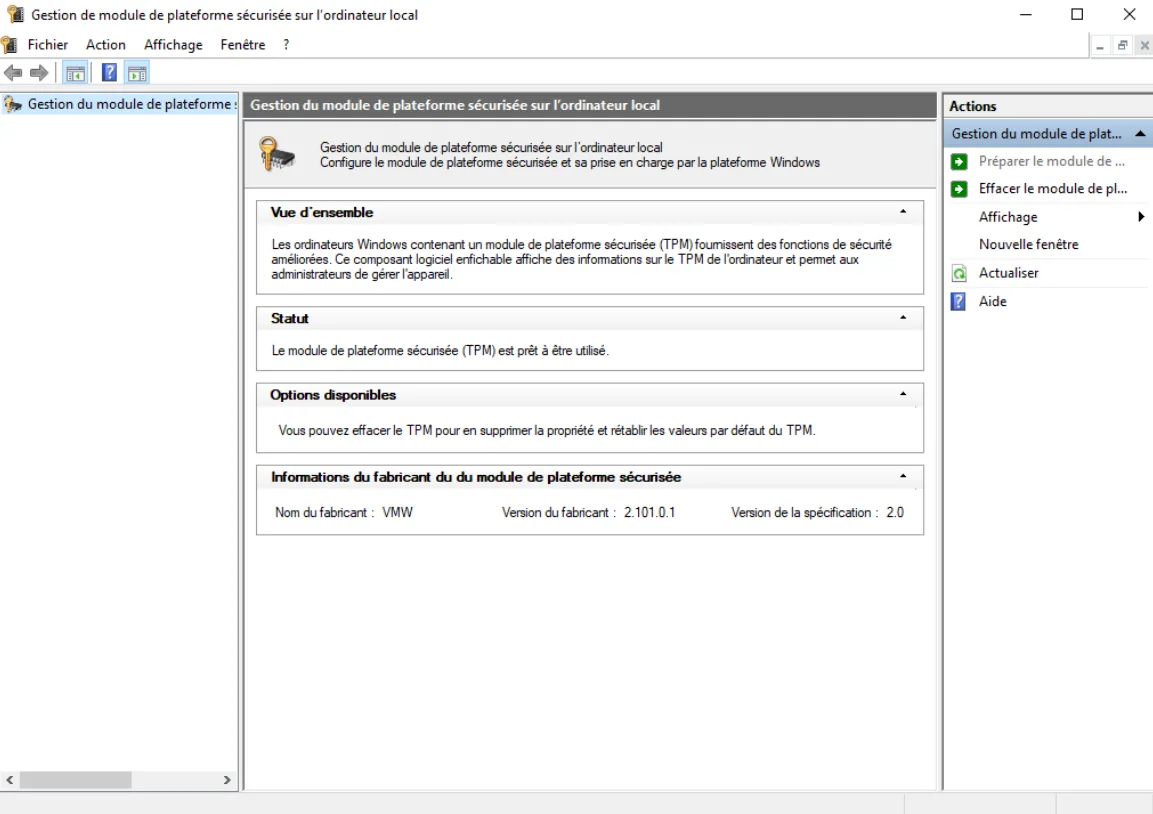
2. Open the Start menu and type "BitLocker" in the search bar. Click "Manage BitLocker" to open the configuration tool.
3. Select the drive you want to encrypt and click "Turn on BitLocker". If you are prompted to enable TPM, follow the on-screen instructions to do so.
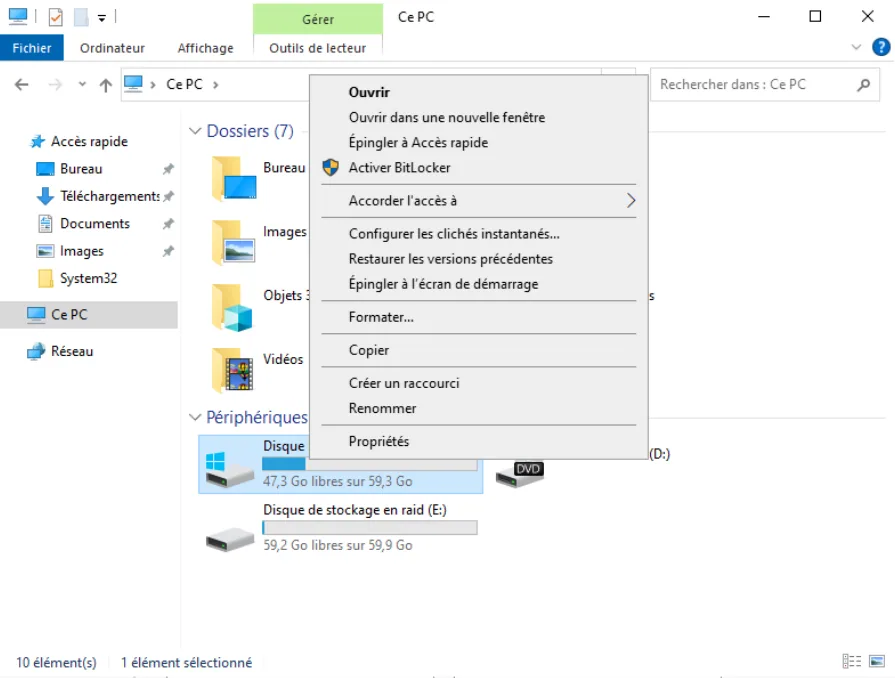
4. In the dialog box that appears, select the option "Use a password to unlock the drive" and enter a strong password.
You can also select the option "Save the recovery key to a USB flash drive" to create a recovery key that you can use if you forget your password.
5. Choose the option (recommended) "Encrypt used disk space only" to encrypt only the data currently stored on the drive, or "Encrypt entire drive" to encrypt the whole hard drive.
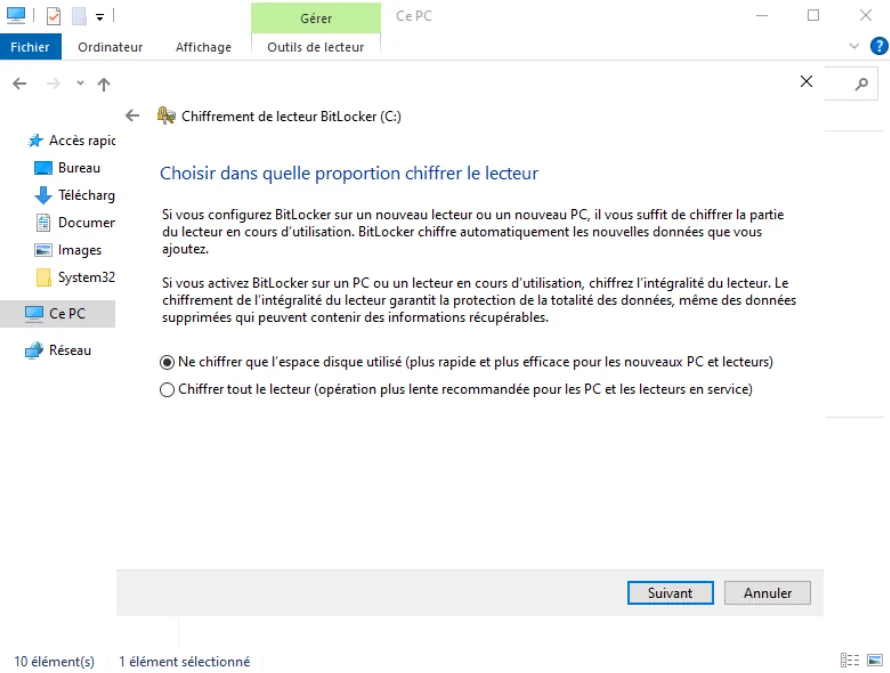
6. Wait until the encryption process is complete. This can take several hours depending on the size of your hard drive.
7. Once encryption is complete, restart your computer and enter your BitLocker password to unlock your hard drive.
That is all. The drive will then be encrypted with BitLocker. Remember to save your recovery key in a safe place in case you need it in the future.