
Joining an Active Directory (AD) domain can offer several benefits for a Windows computer:
Centralized managementWhen a computer is added to a domain, administrators can manage user and computer accounts from a single console. This helps simplify the management of users and resources.Group policiesGroup policies allow administrators to define security and configuration settings for all computers and users in the domain at the same time. This helps ensure that computers are configured in a consistent and secure way.Access to shared resourcesUsers can easily access shared resources, such as files and printers, on the network. Administrators can also control access to these resources based on the user's needs.SecurityBy joining a domain, computers can be subject to stricter security rules, such as complex password requirements and account lockout policies. This can help reduce the risk of a security breach. In short, joining an AD domain can offer a number of benefits for the management and security of computers in a professional or educational environment.
Procedure to join an Active Directory domain
1. Check that the computer's preferred DNS matches the IP address of your Windows DNS server on the network.
You can use the ipconfig /all command in a cmd to find this out.
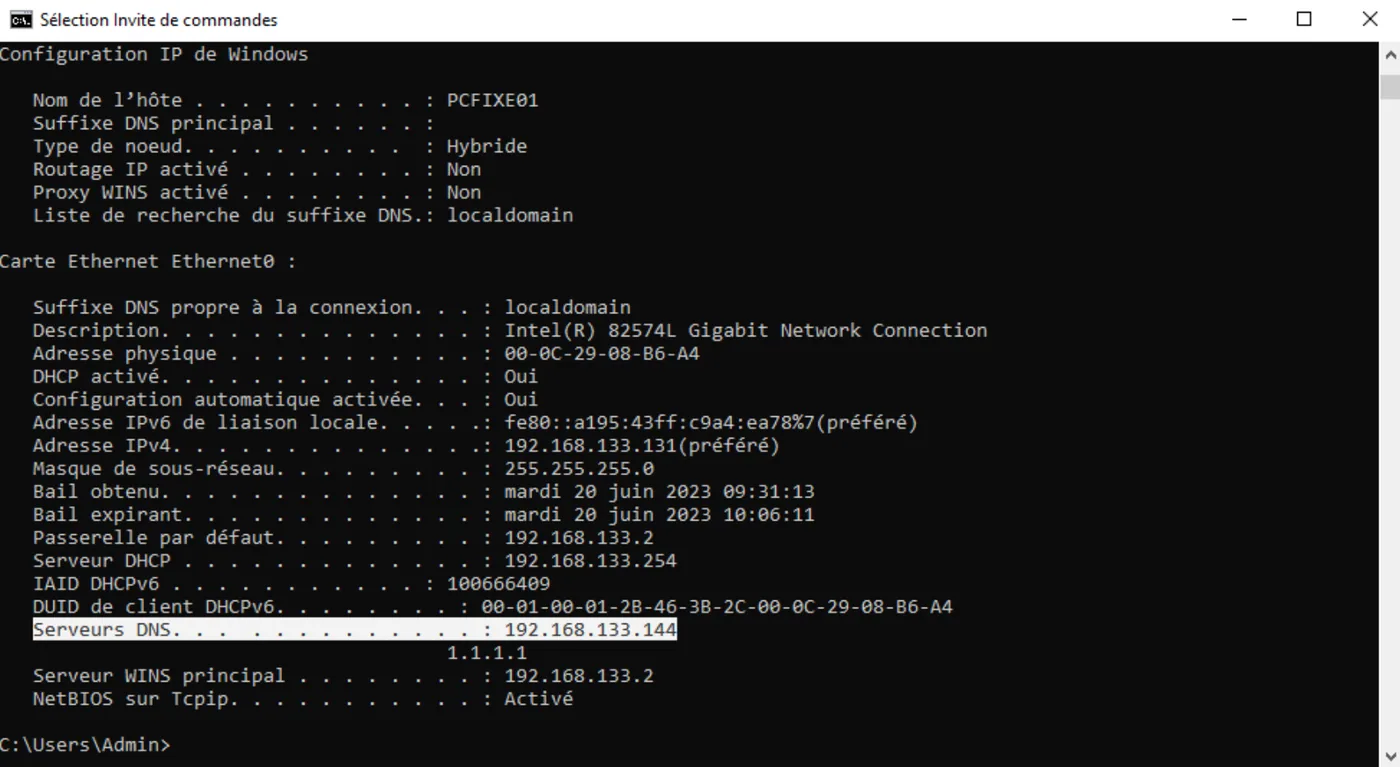
2. Check that the IP address behind the domain name responds
You can use the ping command followed by the name of your domain to check this. You should see the IP of your Windows server appear to confirm that name resolution is working correctly.
In the event that another IP responds, it is often necessary to clear the DNS cache using the ipconfig /flushdns command

3. Open the Control Panel in System and Security, then in System.
On Windows 10 - Click Change next to the computer name
On Windows 11 - Click Domain or workgroup
Check the domain box and enter the name of your domain in this field.
You must be on a Windows Professional Edition to use this option.
4. Enter the credentials to access the domain
To join the domain you normally need to use a Domain Admins account. By default (which is not recommended in a production environment) you can use the Administrator account of your domain.
5. Restart to apply the settings
After the restart you will be able to sign in with your domain users using YOURDOMAIN\ before your user name.
Alternative procedure
- Click the "Start" button and select "Settings".
- Select "Accounts" then "Access work or school".
- Click "Join a domain".
- Enter the name of the AD domain you want to join, then click "Next".
- Enter the credentials of the user with privileges to add this computer to the domain, then click "OK".
- Follow the on-screen instructions to complete the connection.
It is important to note that you must have administrator rights on the computer to perform this operation, and that you must also have the appropriate credentials to access the domain. If you have problems joining the domain, make sure that the computer is connected to the network and that you have entered the correct credentials.