
The Kleopatra software is a certified manager and GUI for GnuPG. It will allow you to store your OpenPGP keys. It can be installed on Windows and on Linux.
Step 1: Install Kleopatra
To install this software you will have to go through the download of the software "Gpg4win"
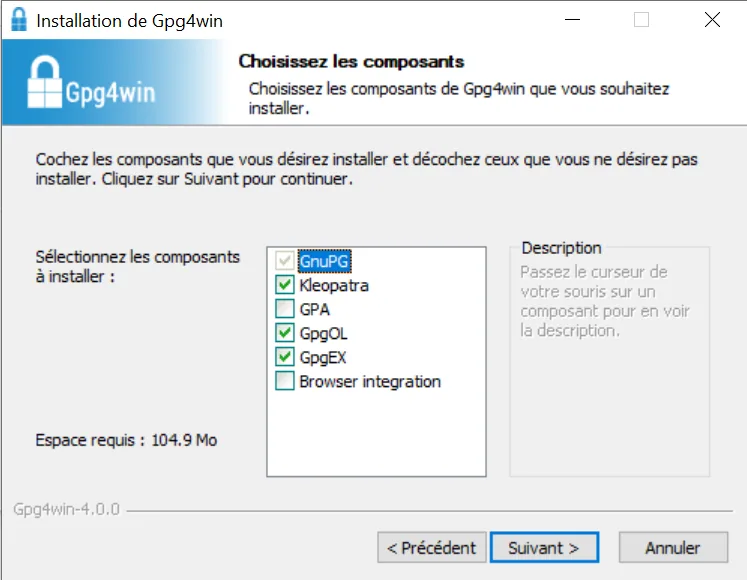
Proceed with its installation, then when you reach the choice of components, some components have been checked by default; leave them as they are.
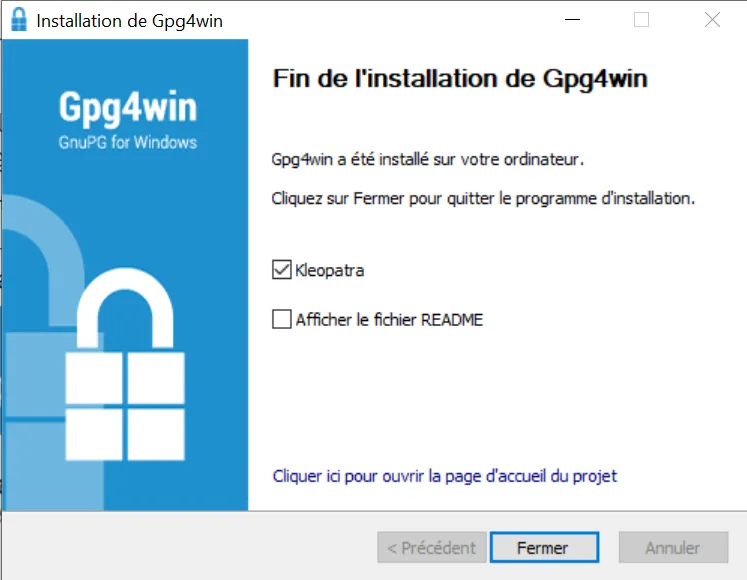
Leave the Kleopatra box checked and close, in order to launch the software directly.
Step 2: Create a new key pair
1. Create a new key pair
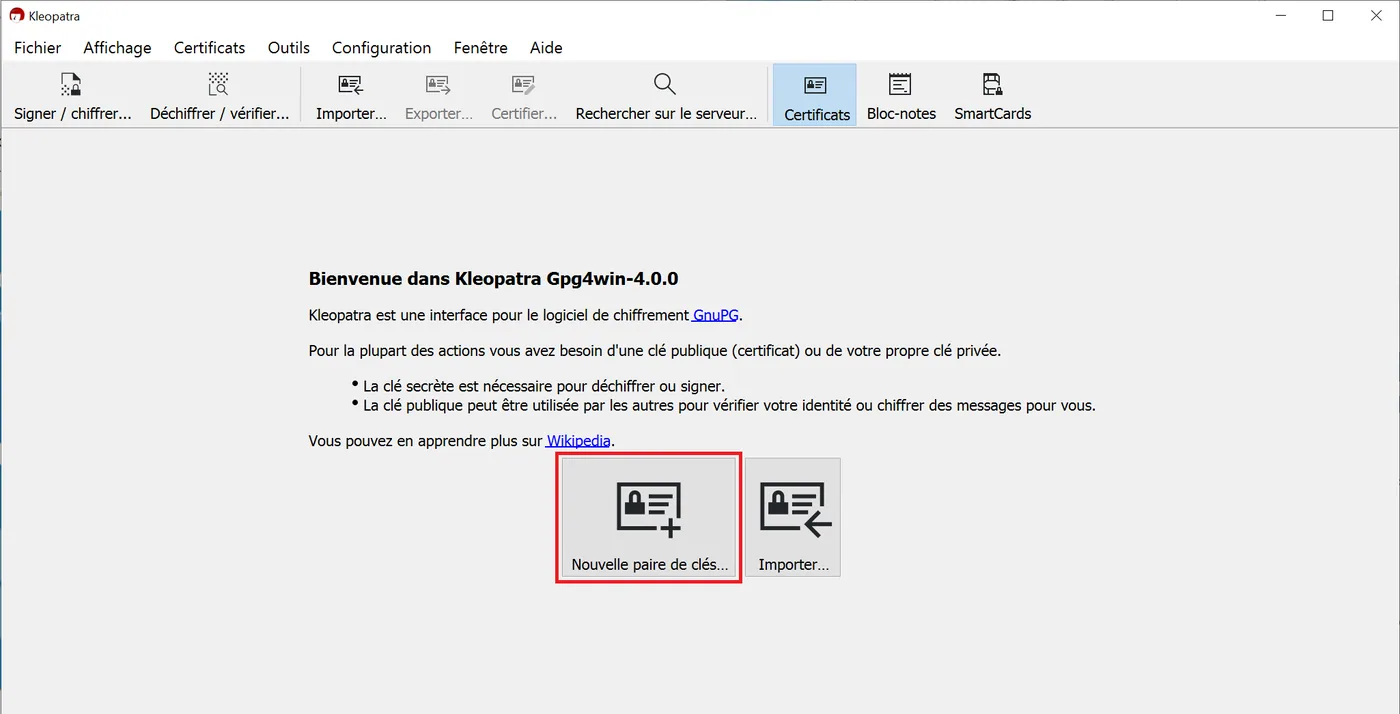
To begin, you will be able to create a new key pair, by clicking on "New OpenPGP key pair". It is this key pair that will subsequently allow you to encrypt and decrypt messages.
2. Enter your information
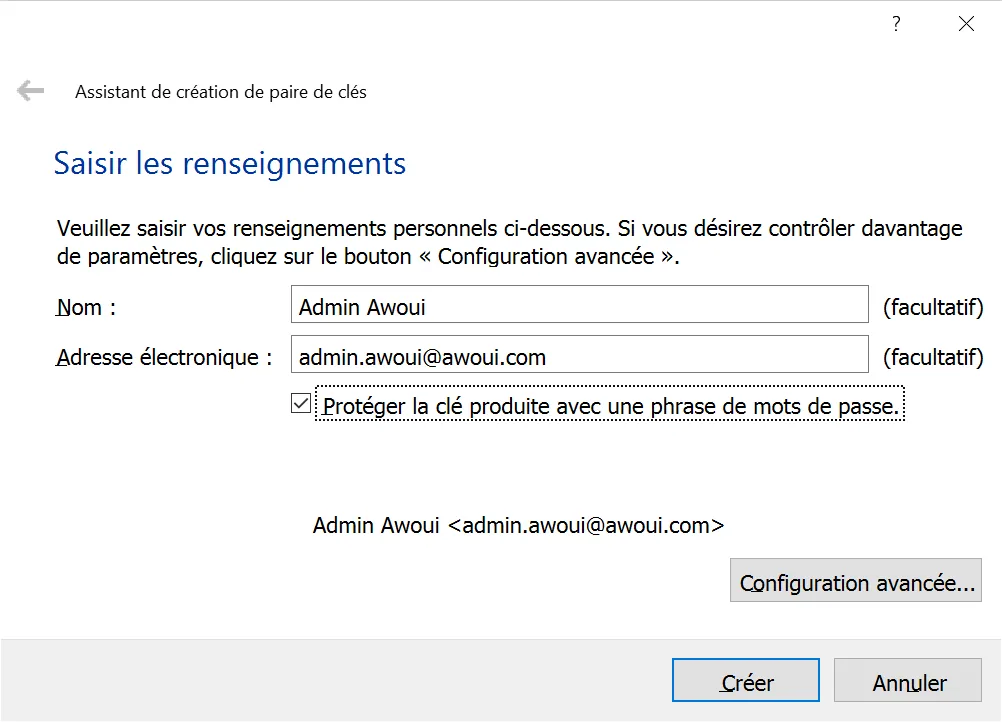
Enter your details, check the box "Protect the generated key with a passphrase" in order to ensure the greatest security. Then "Create".
3. Set the passphrase
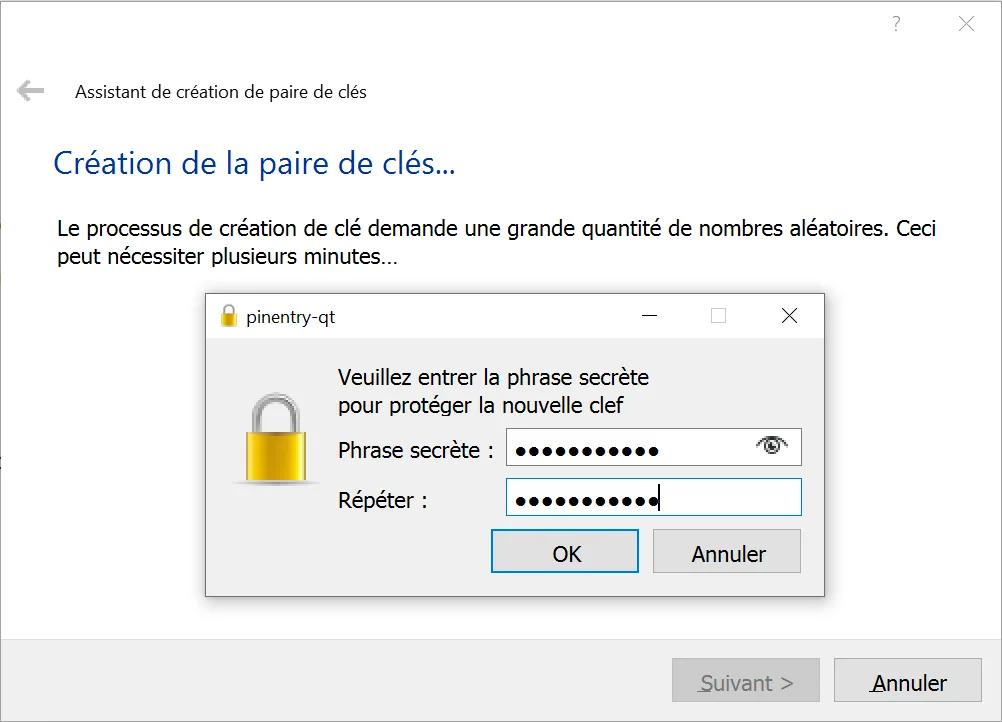
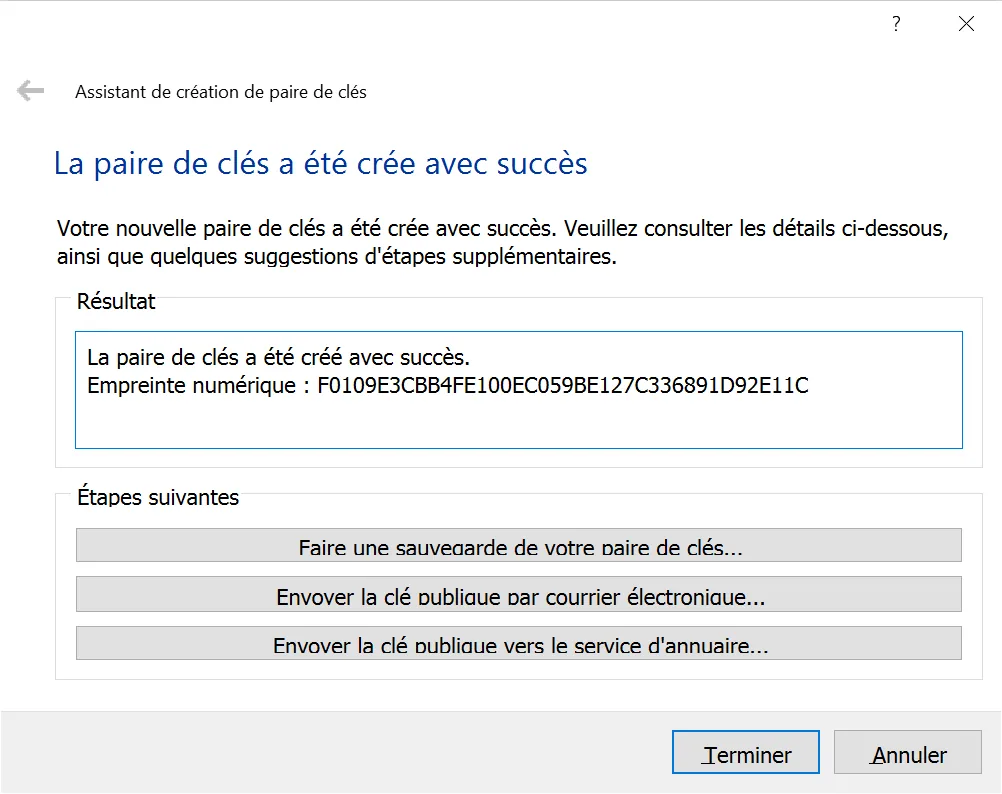
4. Complete the creation of the key pair
You will see that new steps are offered to you; these will be explained further down in the article. Click on "Finish".
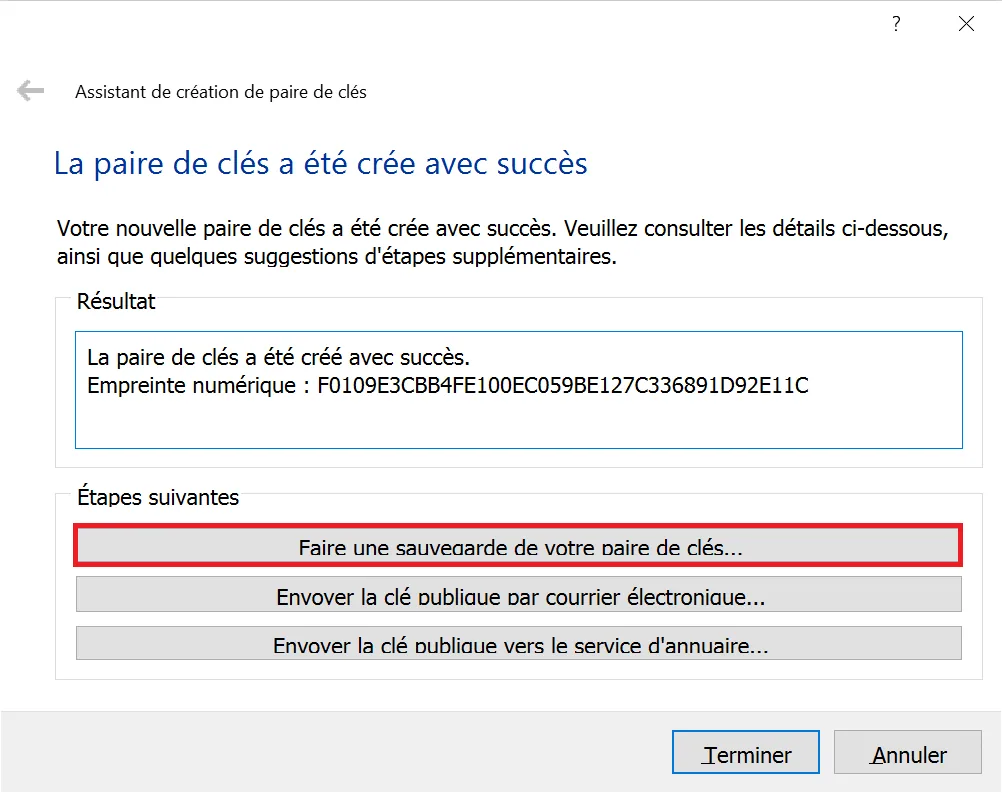
5. Make a backup of the key pair
It is essential to make a backup of your key pair in case anything happens to your computer or to the software. In this way, you will always be able to import your key pair again into a new version of Kleopatra, or restore it if needed. For that, you will need your passphrase.
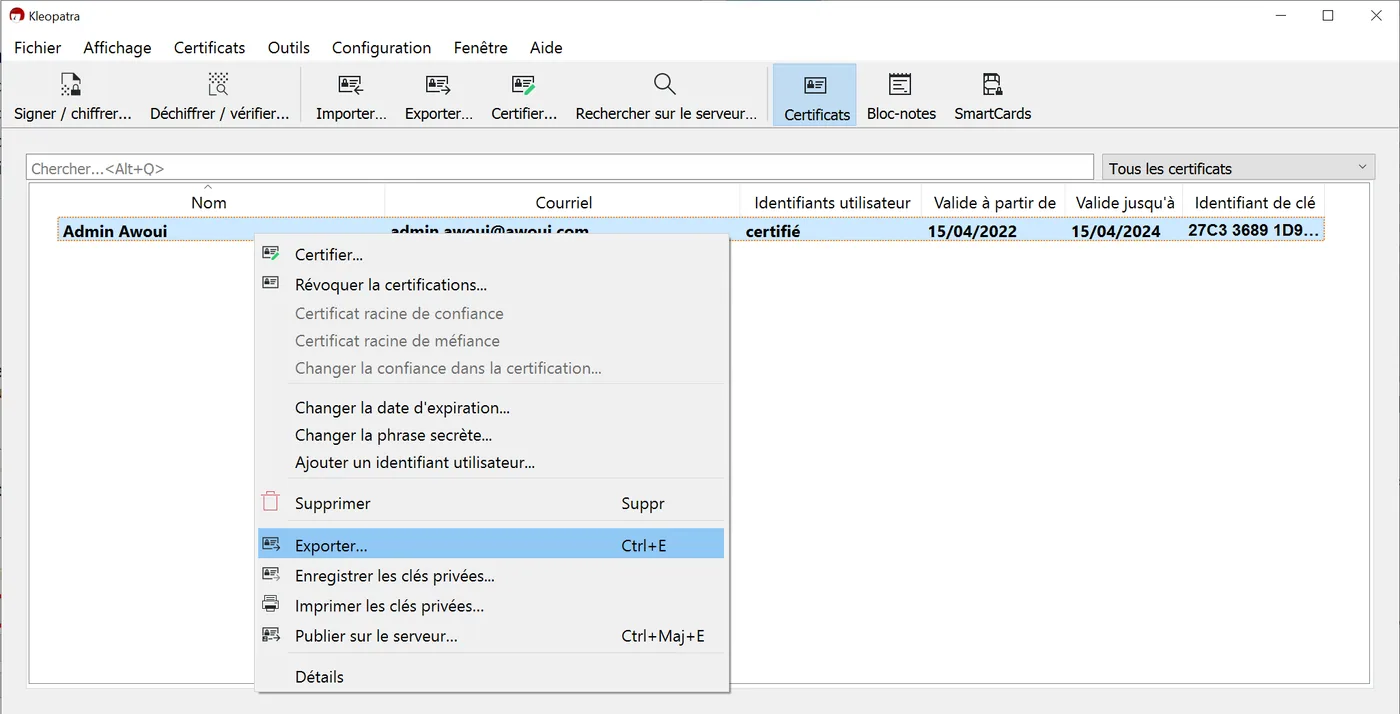
Step 3: Export your public PGP key
Right-click on the key pair you have just created, then "Export".
Once the key has been exported, if you open it with "Notepad" for example:
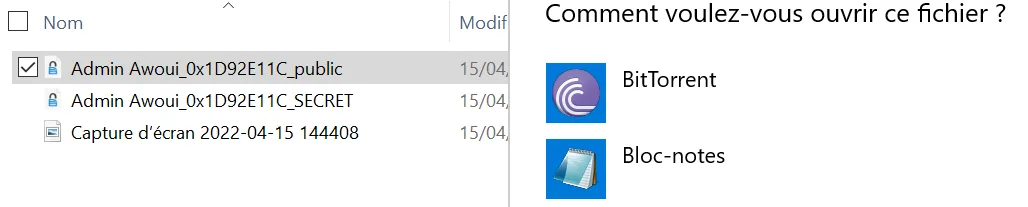
You will then see it appear as below; this is what a public PGP key looks like:
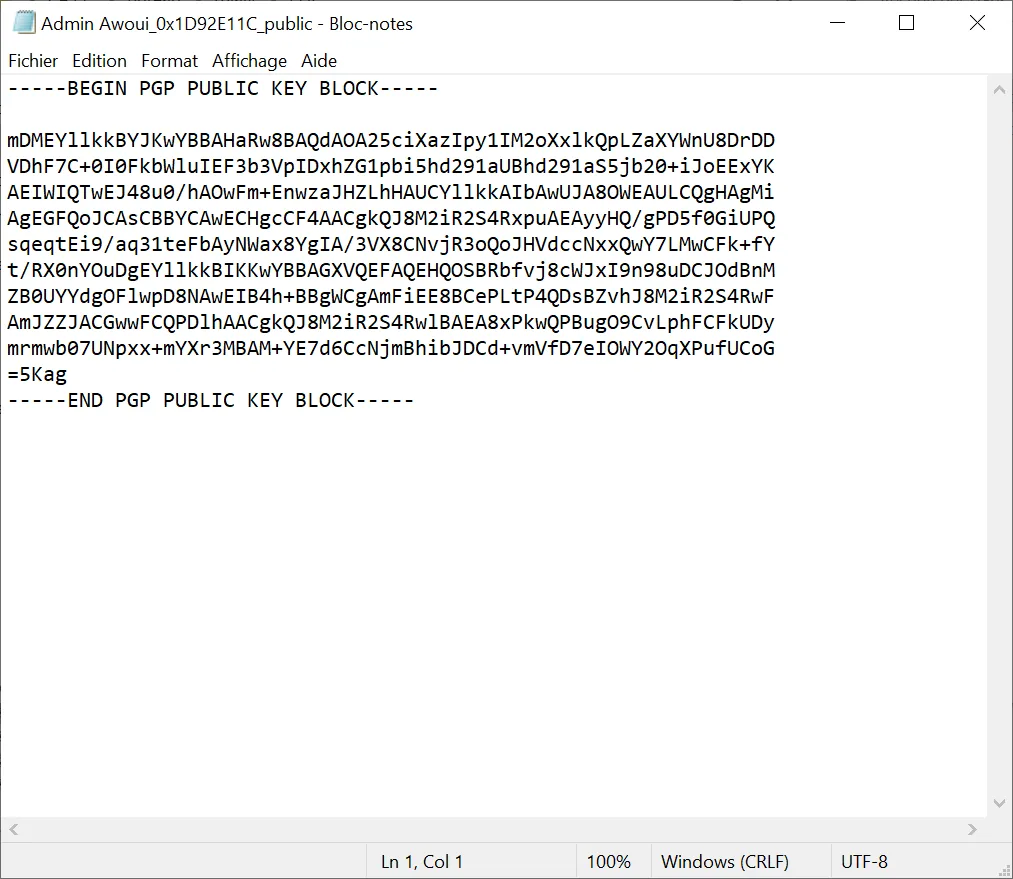
Step 4: Import the public key of another person
Indeed, in order to be able to send an encrypted message to a person, you will need their public key. Likewise, the recipient will need yours in order to validate the signature, which makes it possible to make sure that it really is the right sender. So, as part of an exchange of encrypted messages, we advise you to first exchange your public keys.
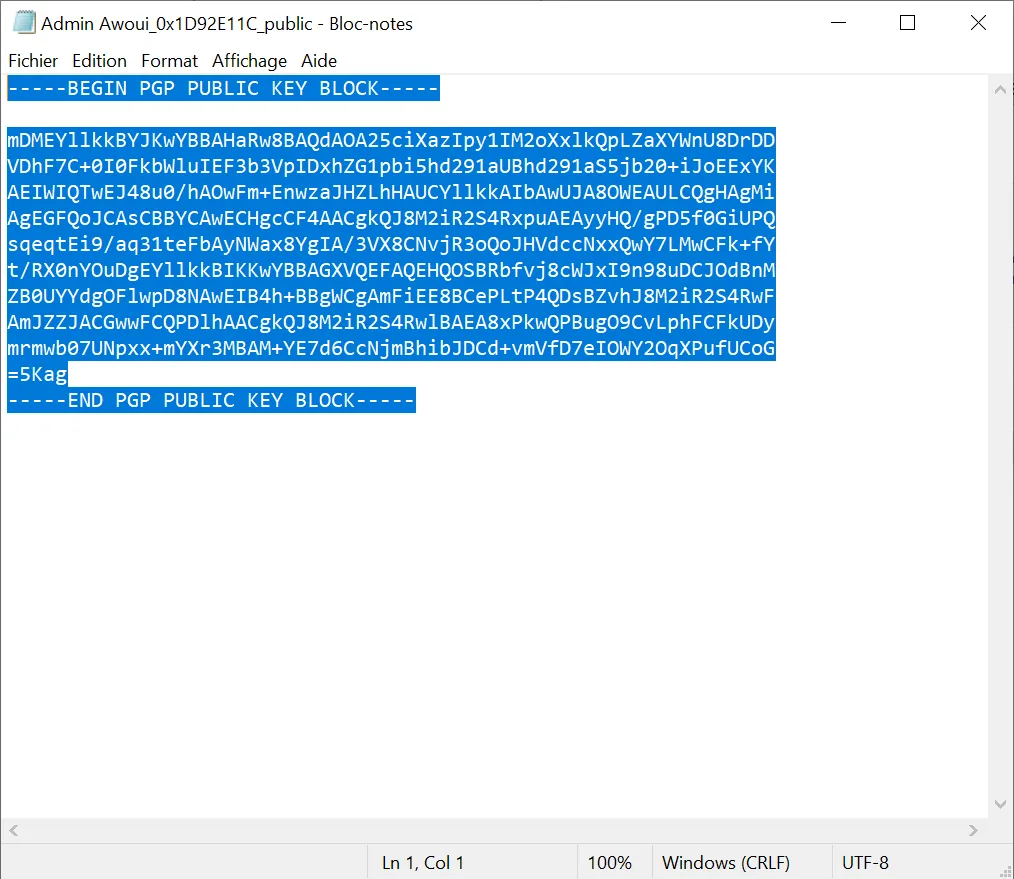
1. Open the public key and copy it
Select all the text and copy it. Here you can take the public key of Awoui to test:
-----BEGIN PGP PUBLIC KEY BLOCK-----
mDMEYllkkBYJKwYBBAHaRw8BAQdAOA25ciXazIpy1IM2oXxlkQpLZaXYWnU8DrDD
VDhF7C+0I0FkbWluIEF3b3VpIDxhZG1pbi5hd291aUBhd291aS5jb20+iJoEExYK
AEIWIQTwEJ48u0/hAOwFm+EnwzaJHZLhHAUCYllkkAIbAwUJA8OWEAULCQgHAgMi
AgEGFQoJCAsCBBYCAwECHgcCF4AACgkQJ8M2iR2S4RxpuAEAyyHQ/gPD5f0GiUPQ
sqeqtEi9/aq31teFbAyNWax8YgIA/3VX8CNvjR3oQoJHVdccNxxQwY7LMwCFk+fY
t/RX0nYOuDgEYllkkBIKKwYBBAGXVQEFAQEHQOSBRbfvj8cWJxI9n98uDCJOdBnM
ZB0UYYdgOFlwpD8NAwEIB4h+BBgWCgAmFiEE8BCePLtP4QDsBZvhJ8M2iR2S4RwF
AmJZZJACGwwFCQPDlhAACgkQJ8M2iR2S4RwlBAEA8xPkwQPBugO9CvLphFCFkUDy
mrmwb07UNpxx+mYXr3MBAM+YE7d6CcNjmBhibJDCd+vmVfD7eIOWY2OqXPufUCoG
=5Kag
-----END PGP PUBLIC KEY BLOCK-----
2. Import the public key into Kleopatra
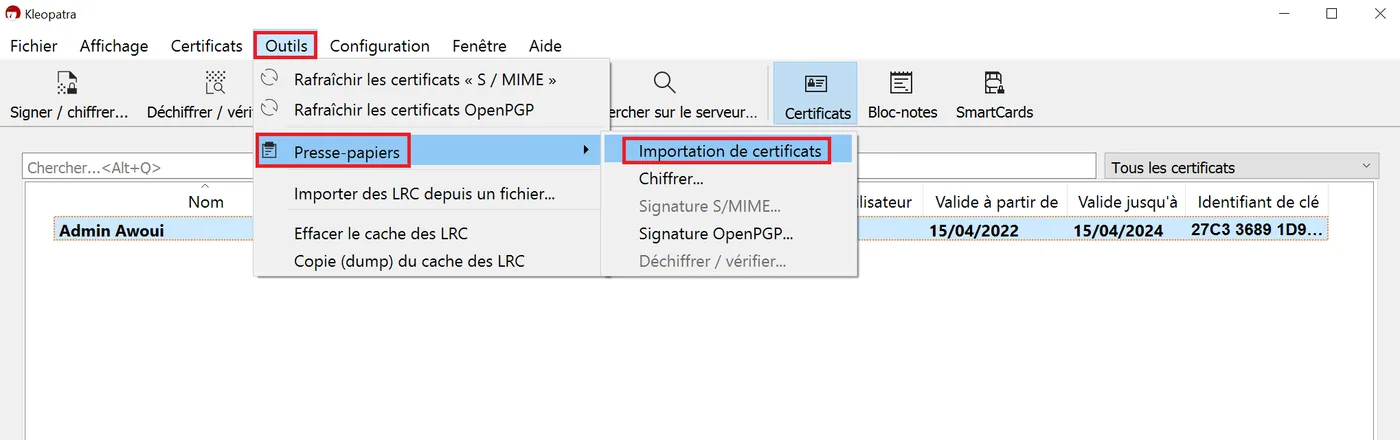
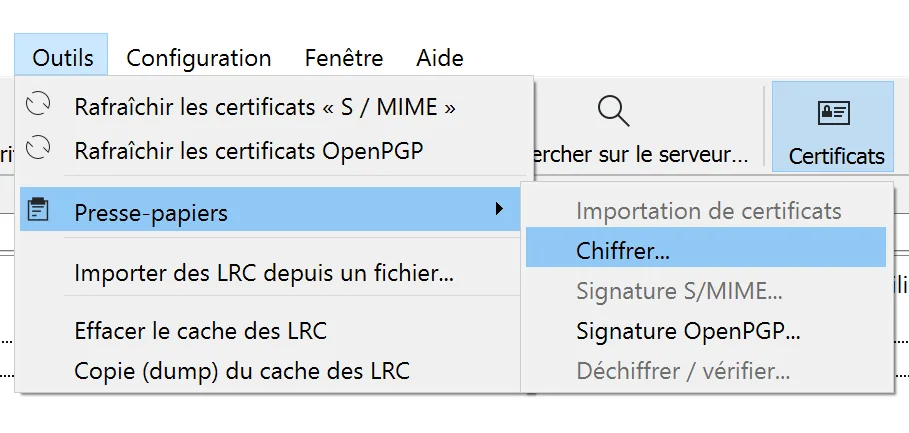
Go to "Tools" in the "Clipboard" settings, then click on "Certificate import"
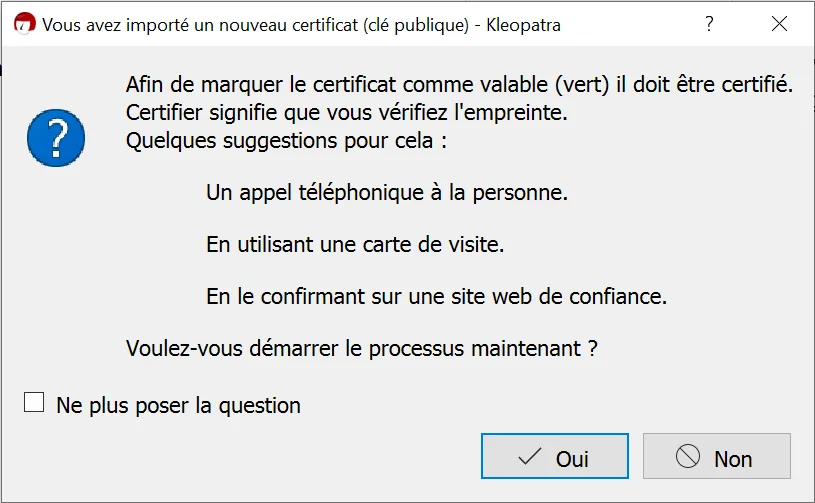
You will then reach this window; click on "Yes"
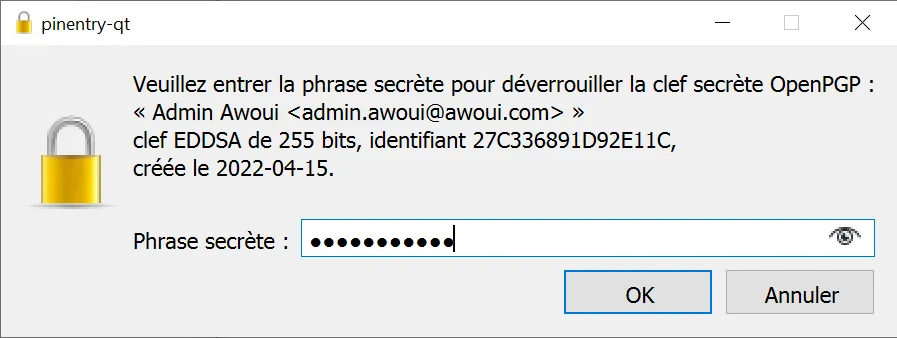
Certify, then enter your passphrase again
3. Certify the public key
Normally, when you import a key, you will be able to proceed directly with its certification. This certification is one that you carry out yourself.
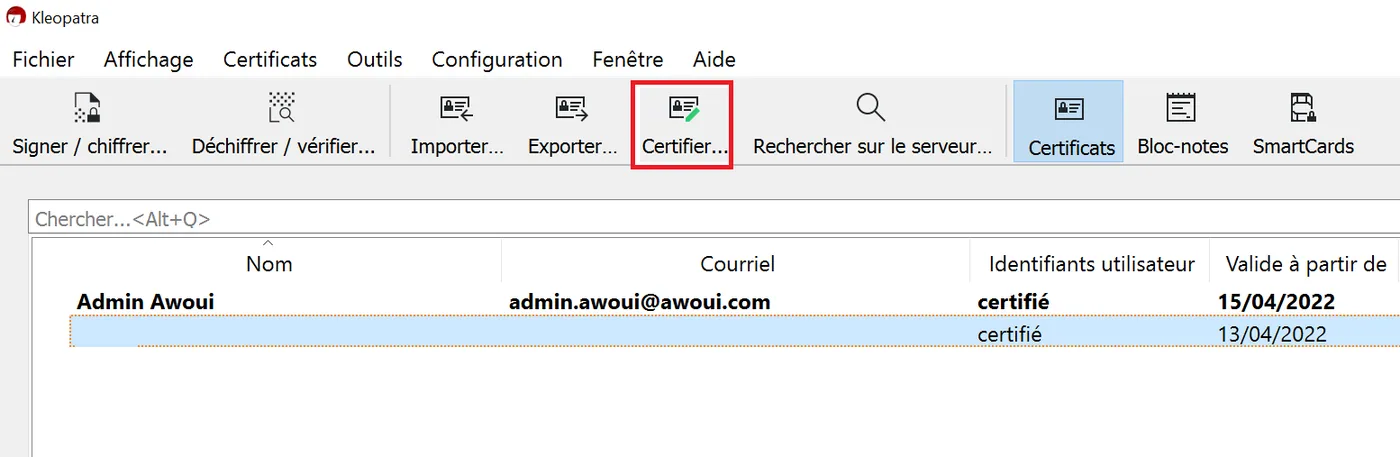
Nevertheless, it sometimes happens that this certification is not taken into account, so it will have to be done again manually by clicking on "Certify".
Step 5: Send an encrypted message
Now that you have imported the recipient's public key, you will be able to send them an encrypted message.
1 Write a message
Open a blank page in Notepad, write your message and copy it.

2. Encrypt the message
Once the message has been copied to your clipboard, go back to Kleopatra. Go to the "Tools" setting, into "Clipboard", then click on "Encrypt".
Add a recipient by clicking on "Add new recipient", select the recipient's certificate, then click on "OK"
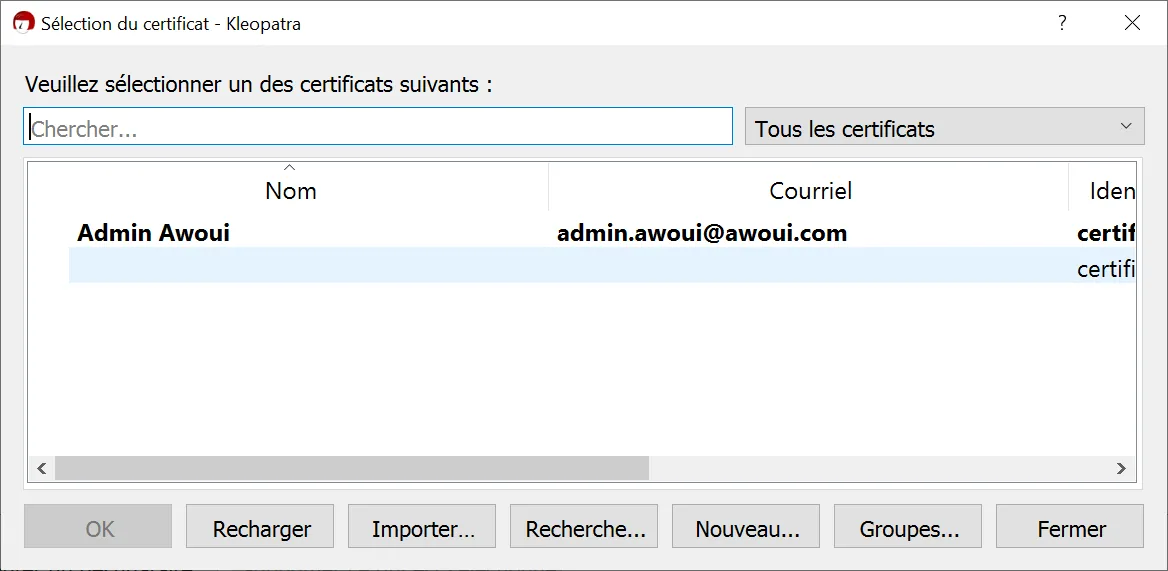
Once the recipient has been added, select them, click on "Next" then "OK" and you should reach this window:
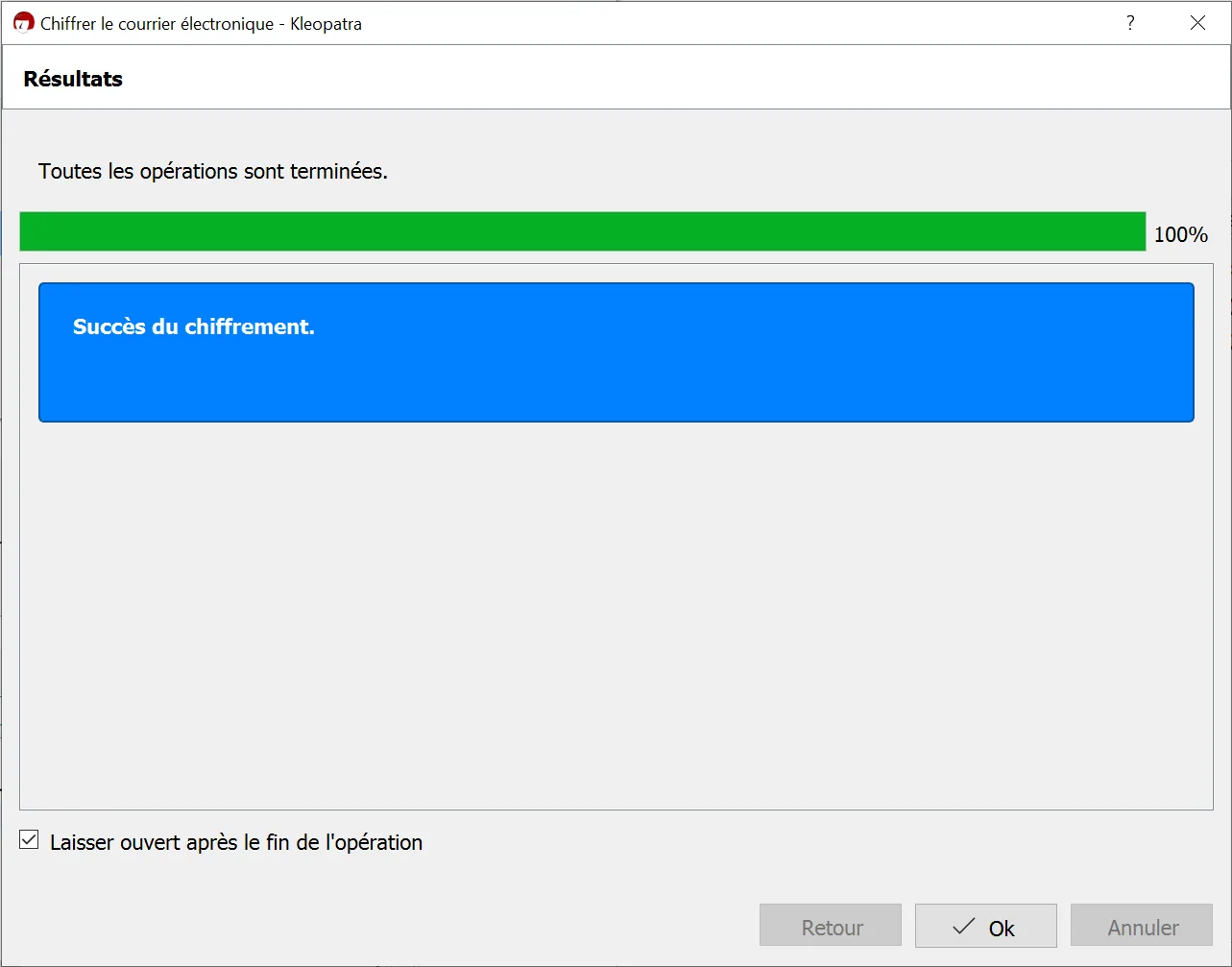
3. Send the encrypted message
Once you have clicked on "OK", you will have an encrypted message copied to your clipboard.
Then copy this message onto a blank page in Notepad and you will have the encrypted message, which you will recognize because it begins with "BEGIN PGP MESSAGE".
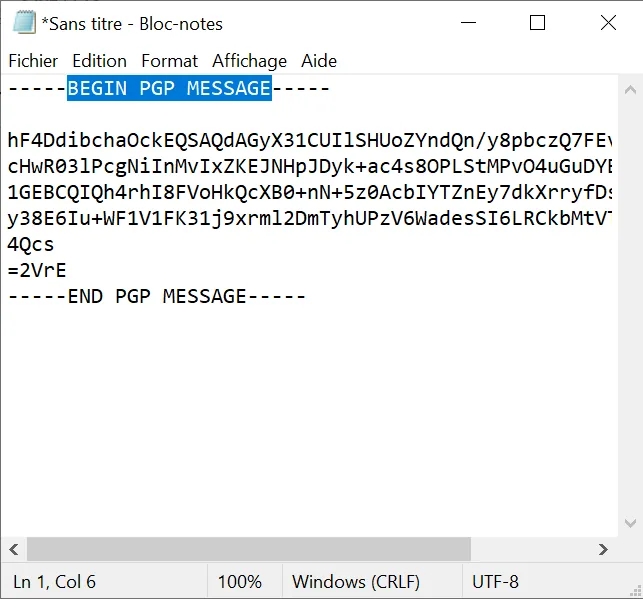
So, once the message is encrypted, only the person whose public key you used and whom you added as a recipient will be able to decrypt this message and read it. You can therefore copy this message and send it, through any platform, to its recipient.
Step 6: Decrypt a message
Take the encrypted message you have received, then copy it
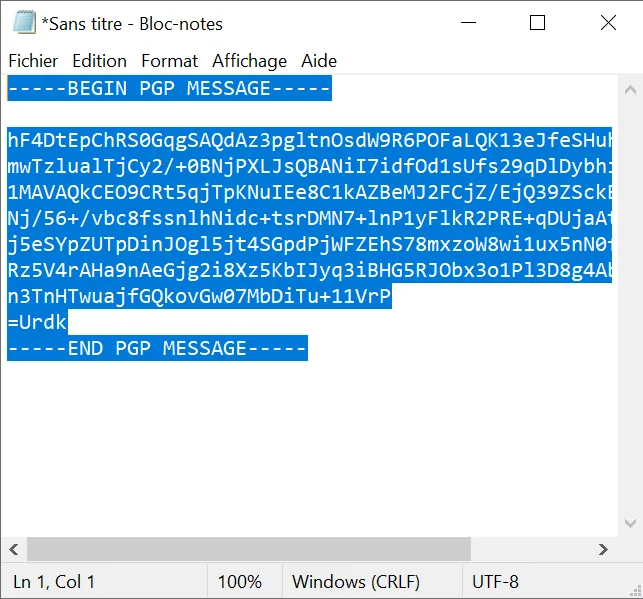
Then go back to Kleopatra to go into the settings in "Notepad".
Paste the encrypted message there and click on "Decrypt / verify Notepad"
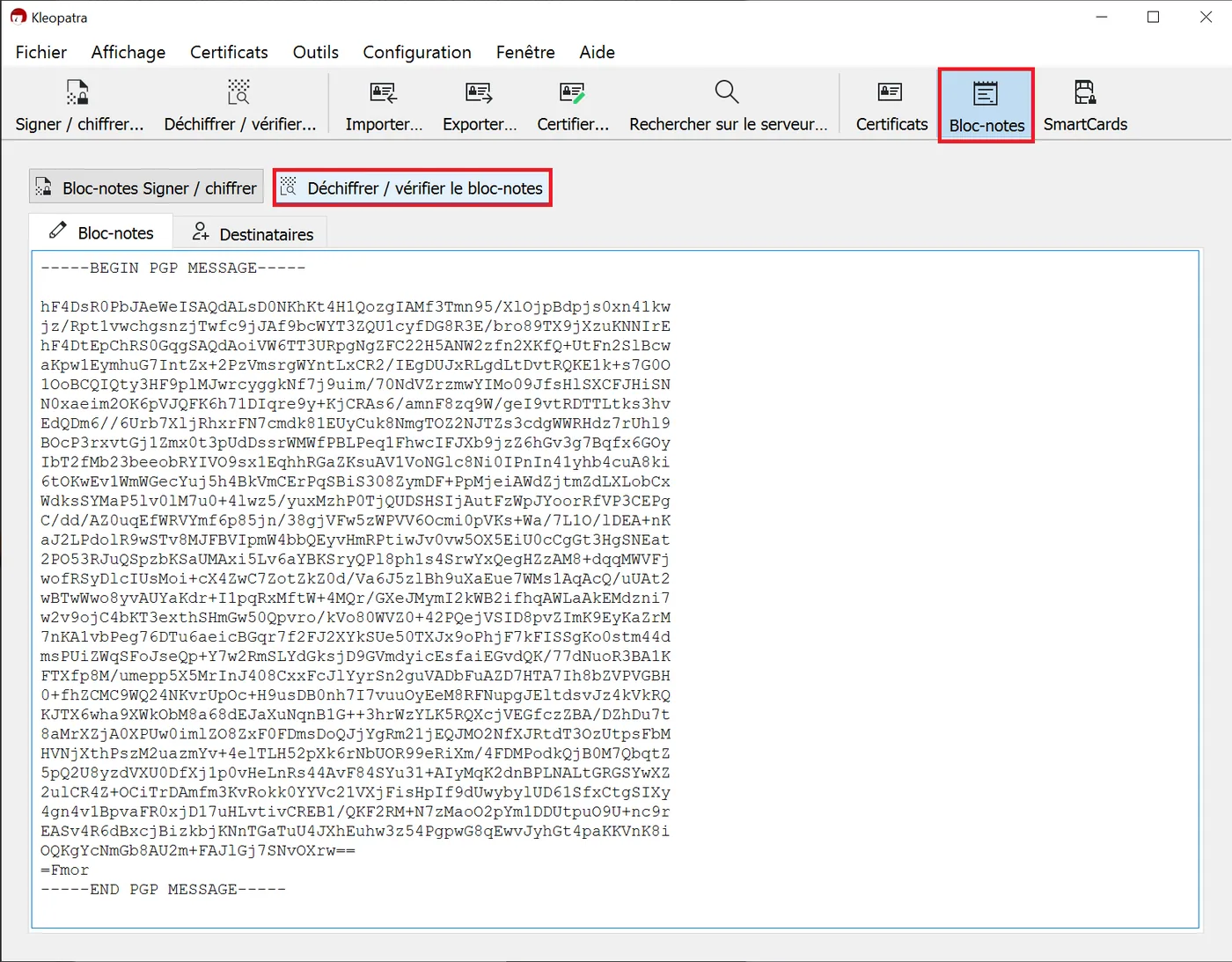
You will then see a message on a green background confirming that the signature is indeed valid. The decrypted message will therefore be displayed in place of the encrypted message you had pasted earlier.