Installing Docker
curl -fsSL https://get.docker.com/ | shAdding a user to the docker group in order to run the docker command
sudo usermod -aG docker usernameInstalling docker-compose
sudo curl -L https://github.com/docker/compose/releases/download/1.29.2/docker-compose-$(uname -s)-$(uname -m) -o /usr/local/bin/docker-composeAdding execution rights on docker-compose
sudo chmod +x /usr/local/bin/docker-compose
Creating a directory for our wordpress project
sudo mkdir /srv/wordpress
cd /srv/wordpress
Creating the docker-compose.yml
sudo nano docker-compose.yml
wordpress:
    image: wordpress
    links:
     - mariadb:mysql
    environment:
     - WORDPRESS_DB_PASSWORD=changecomplexpassword777%
     - WORDPRESS_DB_USER=root
    ports:
     - "80:80"
    volumes:
     - ./html:/var/www/html
mariadb:
    image: mariadb
    environment:
     - MYSQL_ROOT_PASSWORD=changecomplexpassword777%
     - MYSQL_DATABASE=wordpress
    volumes:
     - ./database:/var/lib/mysql
Running the container and keeping it online
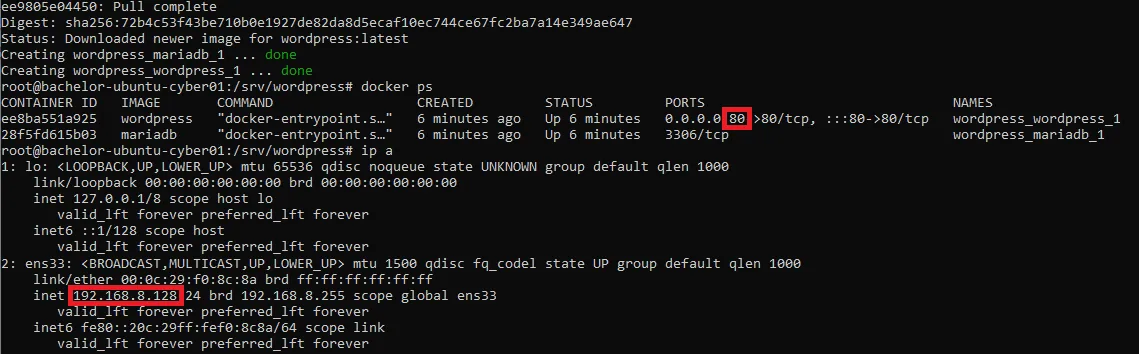
docker-compose up -dChecking the state of the docker processes
docker psUsing the IP address of the Linux server and the port number associated with the web service, we can now connect from a browser.
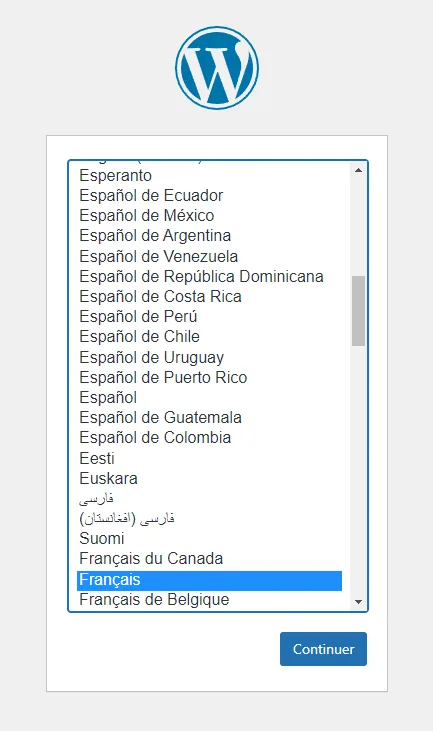
Choose the language in which WordPress will be displayed.
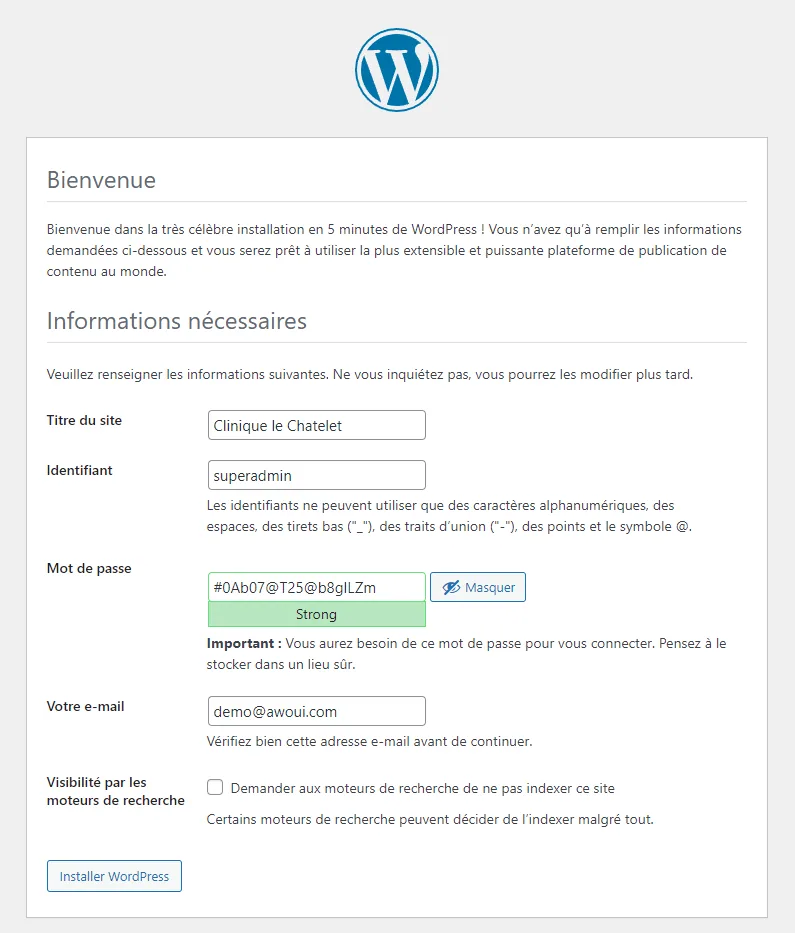
Save this password in a password manager right now.