
Windows 11 marks a major change compared with Windows 10 in terms of design, but the two operating systems are very similar under the hood. With the new operating system now available on certain devices - and through download from Microsoft - we are here to help you decide whether you should carry out an upgrade.
Visually, the two are quite different, but there are also key changes that set the new generation of Windows apart from the previous generation. You are probably wondering whether you should upgrade, and we have you covered with this overview of all the differences between the two.
Above is the video by Tech2Tech which will tell you everything you need to know.
Should you move to Windows 11?
Just as Windows 10 was a free upgrade from Windows 8.1 and Windows 7, Windows 11 will be a free upgrade from Windows 10. But there is a catch. This upgrade only applies as long as your PC meets Microsoft's minimum requirements, which is already causing a fair share of controversy, in particular regarding the requirement to have a TPM 2.0 chip. (Trust Platform Module, is a cryptographic standard that handles encryption at the hardware level)
The devices on which Windows 10 is installed will be able to move to the new version through Windows Update. After that, Microsoft says that it is taking a gradual approach and that it expects all compatible PCs to be updated by the middle of 2022.
It is important to note that Microsoft still supports Windows 10 until 2025.
If you have a compatible device, you can move to Windows 11 to try it out. There is a catch, however. After the upgrade, you will only have 10 days to go back to Windows 10.
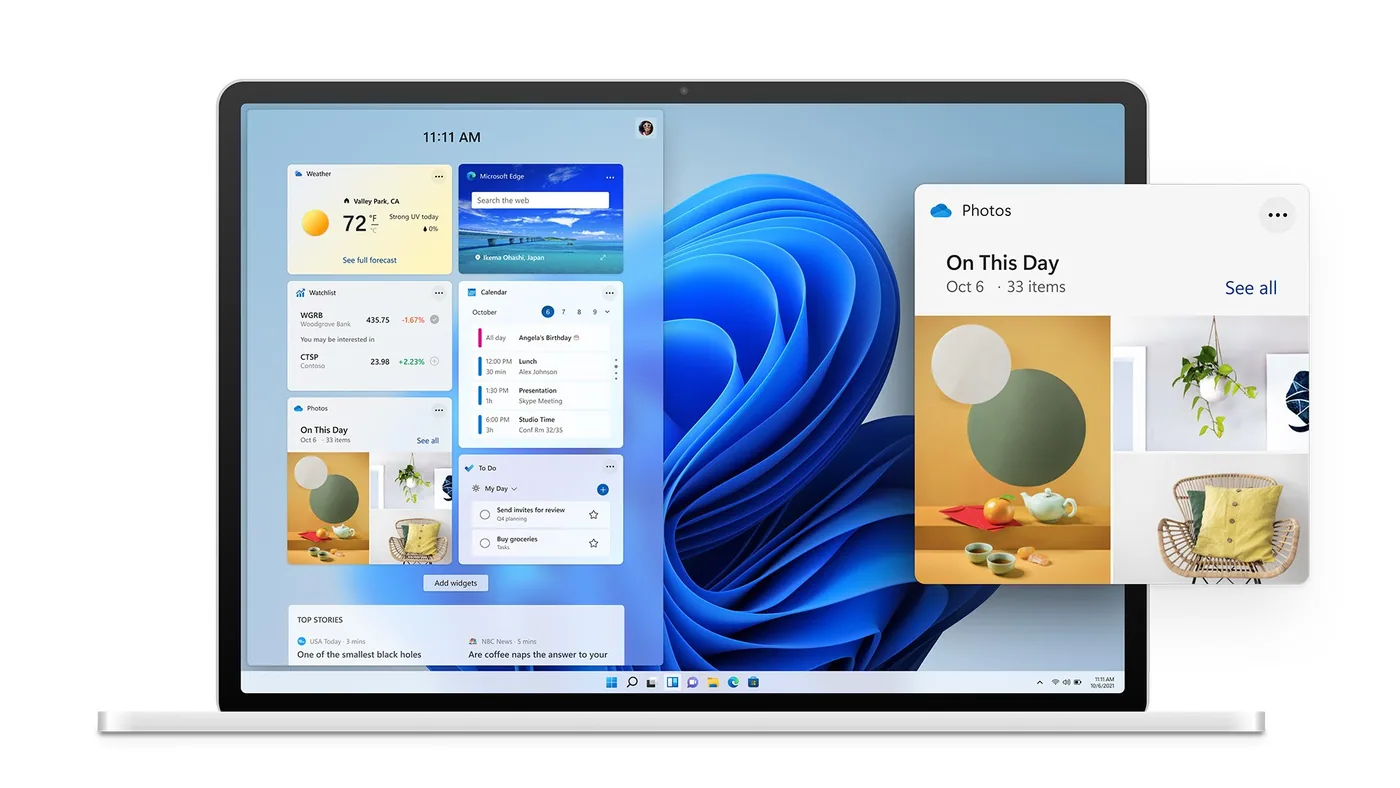
Here are the changes you need to know about if you are considering upgrading.
Windows 11 removes some features of Windows 10.
You can no longer synchronize your desktop wallpaper, Internet Explorer and the math input panel are gone and a few applications are also removed by default: the 3D viewer, OneNote for Windows 10, Paint 3D and Skype.
If you are a gamer, note that Windows 11 offers exclusive features for you . Auto HDR makes your games more dynamic and Direct Storage helps your graphics card and your SSD communicate faster.
The Windows Store will support Android apps
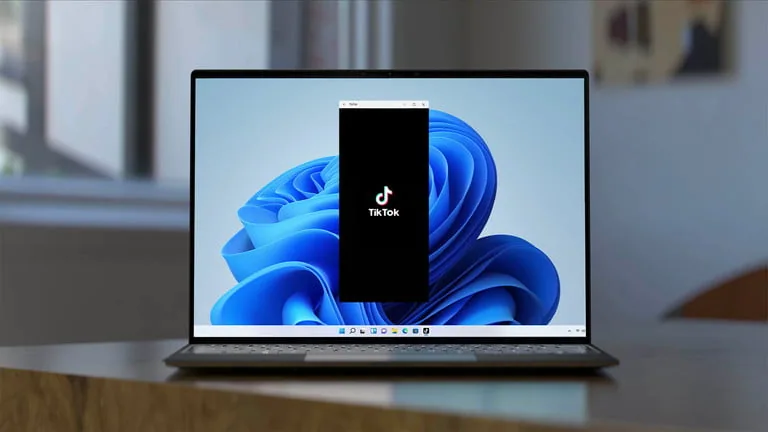
The application store in Windows 11 and Windows 10 will be fairly similar in the future, but with one key difference. The Windows 11 application store supports Android applications through the Amazon Appstore, but not in the initial version that will be released on October 5. You will not get it in Windows 10 because Windows 11 relies on the new Windows subsystem for Android.
The recently redesigned Microsoft Store in Windows 11, which makes it easier to search for applications and films, will also eventually reach Windows 10, but you will not get Android applications. The store still allows you to download all Windows applications on both operating systems. This includes Win32 applications, UWP applications and progressive web applications.
This is part of a broader effort by Microsoft to bring more applications to the Microsoft Store. The company announced that the Epic Games Store was coming to the Microsoft Store. In statements, Microsoft said that the aim was to make the Microsoft Store a one-stop shop for all your PC applications.
As mentioned, the updated Microsoft Store is also coming to Windows 10. The only difference is the support for Android applications on Windows 11, which is not available at launch.
Start menu and taskbar
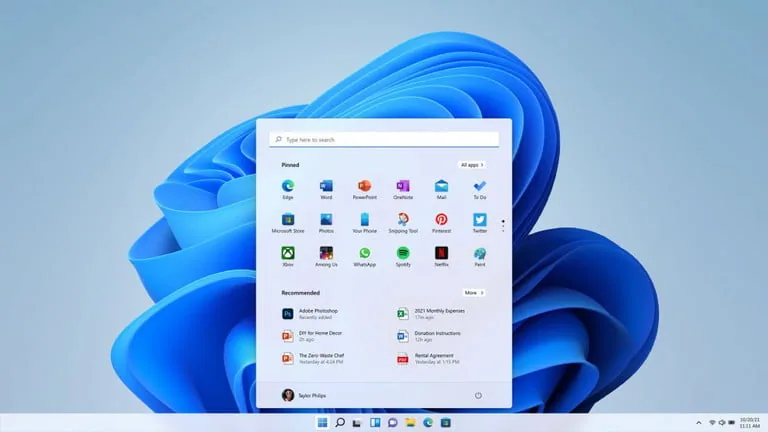
If you are looking for the differences between Windows 11 and Windows 10, the most important ones are the Start menu and the taskbar. In Windows 11, Microsoft centers the taskbar and the Start menu on the screen. This makes it look a little more like MacOS and ChromeOS. However, you can still move it to the left if you wish.
Speaking of the Start menu, in Windows 11 it is a little more simplistic. You only see a static list of applications, followed by your most frequently used documents at the bottom. You can expand your applications, scroll through the list and pin applications as you like. If you really want to see the information in your Start menu at a glance, then Windows 10 is better.
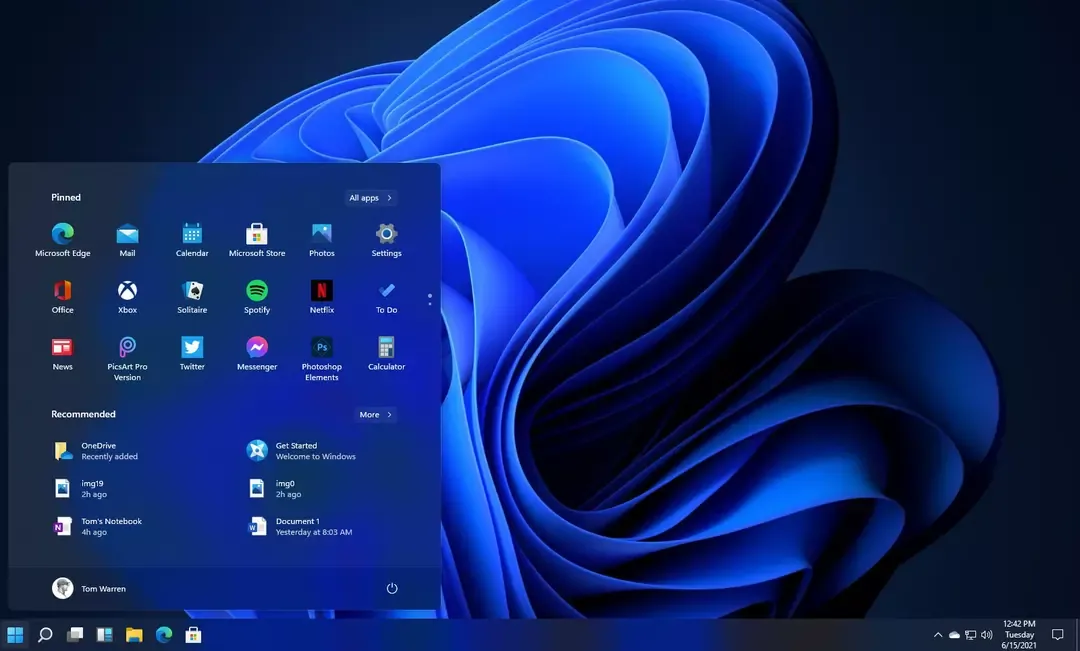
Windows 11 can be configured with a home screen similar to Windows 10
Regarding the taskbar, note that there are major changes in Windows 11 compared with Windows 10. Microsoft has reduced the search box to an icon and has also removed the Cortana functions in Windows 11. If you want Cortana, you will need to download the application. The search also moves to the center of the screen, with a floating design and a tabbed layout similar to Windows 10.
Virtual desktops
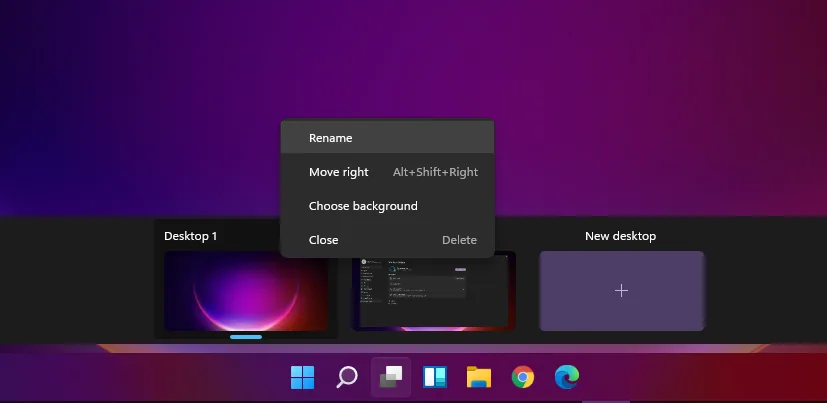
The virtual desktops of Windows 11 were created with the idea that a user uses their computer in different places. This means that a user can have a different workspace at home and another one for work.
If you want to pin your taskbar to the right or to the left of the screen, we have bad news. You can no longer do so, because in Windows 11 the taskbar only stays at the bottom. Applications cannot customize the taskbar either.
Many of these changes are only visual. Windows 11 and Windows 10 share the same features, and it is often the way things look that is different.
You may have seen Microsoft's multitasking demo in Windows 11, and wondered whether it would be brought over to Windows 10. As far as we know, it is a feature exclusive to Windows 11, and you will not see it in Windows 10 .
Better support for multitasking and external monitors
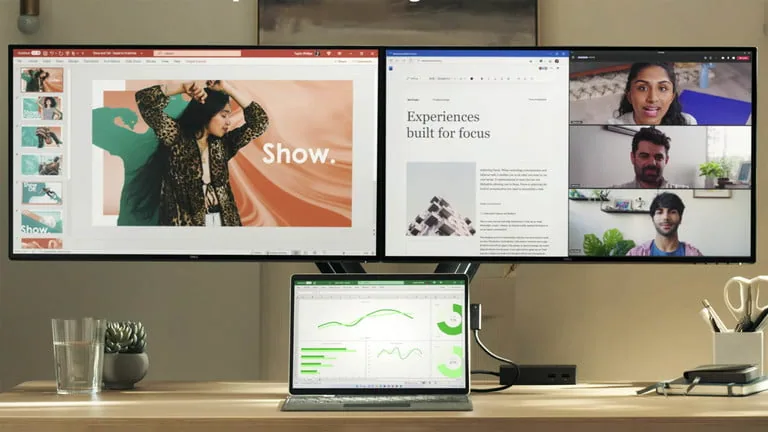
In Windows 11, you will be able to increase your multitasking performance with Snap Layouts which group your windows together and save them in the taskbar. Hover over the Maximize button and you will be able to tile windows of different sizes. Windows 10 will not have this. It keeps the traditional "Snap" function, where you will need to tile your windows manually with a keyboard combination or by hovering over a certain side of the screen.
On external monitors, Windows 11 remembers how you had arranged your windows on your external monitor and will save them in that state when you disconnect from a monitor, then plug it back in. This is one of the most annoying problems with Windows 10 that Windows 11 finally solves.
For many, the difference between Windows 10 and Windows 11 comes down to compatibility. Windows 11 marks the first significant shake-up of supported processors since the release of Windows 8.1. If you want the latest operating system, you will need an 8th generation Intel Core processor or newer, or an AMD Ryzen 2000 processor or newer.
Compatibility
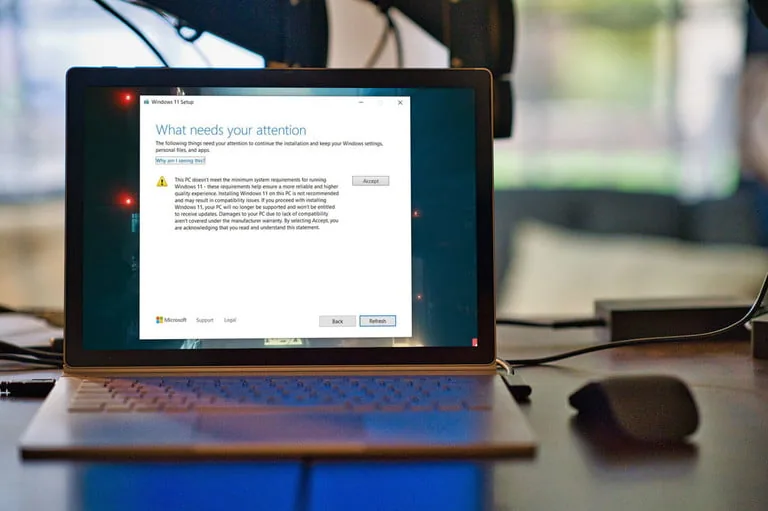
This prevents many PCs from being officially supported. The 8th generation Intel processors arrived at the end of 2017 and the Ryzen 2000 chips only arrived in 2018. In short, if your computer is more than four years old, there is a good chance that it is not supported by Windows 11. This could be the deciding factor between it and Windows 10.
The other system requirements include TPM 2.0 - which is available on the vast majority of recent PCs - as well as UEFI Secure Boot. If you have a supported processor, you should not have to worry about these two other requirements. Microsoft has been requiring these features from its manufacturing partners for years.
There is a way to install Windows 11 on unsupported hardware, but we do not recommend it. Although Microsoft has not confirmed it, the company has strongly hinted that unsupported users will not receive critical security updates. If you still wish to proceed with the installation, you can do so using the media creation tool, which bypasses the hardware checks.
Support cycle and updates
Windows 11 breaks with the twice-yearly update cadence of Windows 10 in favor of a single annual update. It is like MacOS. Microsoft is committed to supporting Windows 10 until 2025, and it should continue to receive updates throughout that period.
We do not know whether it will still receive updates twice a year, but if you really want the latest and best version of Windows, then Windows 11 is for you. You can also update to Windows 11 if you want the most secure version of Windows. Microsoft has really put forward the security of Windows 11 because of the TPM 2.0 requirements, as well as secure boot.
See you very soon to discuss in more detail
some features of Windows 11.