
How does rule deployment through GPO work?
Managing firewall rules on your servers and clients can be an important step toward a more secure environment for your company. The best part? This technology is enterprise class and free, because it is already built into the operating systems you are using. The only cost associated with the firewall at this level is the time it takes to put all these rules in place, which would be an administrative nightmare if you had to implement your entire list of allow and block rules on each machine individually.
Thank goodness for the Group Policy Object ( GPO ). As with most settings and functions on the Microsoft Windows platform, setting up a firewall policy that applies to everyone is child's play for your domain-joined machines. You can even split it into several sets of policies, creating one Group Policy Object that applies firewall rules to your clients and a separate Group Policy Object that applies firewall rules to your servers, as you see fit. The point is that you can group many machines into categories, create a GPO rule set for each category and apply it automatically to every machine using the powerful distribution capabilities of GPO.
1. Create the GPO
You are already familiar with creating GPOs, so go ahead and create one now that will contain firewall settings we can work with. Link and filter the GPO accordingly so that only the machines you want to have the settings actually get them. A good starting point is perhaps a test organizational unit, so that you can make sure that all the rules you are about to place in the Group Policy Object work well together and with all your other existing policies, before deploying the new policy to your production staff.
2. Edit the group policy
Once your new Group Policy Object has been created, right-click it in the Group Policy Management Console and click Edit…
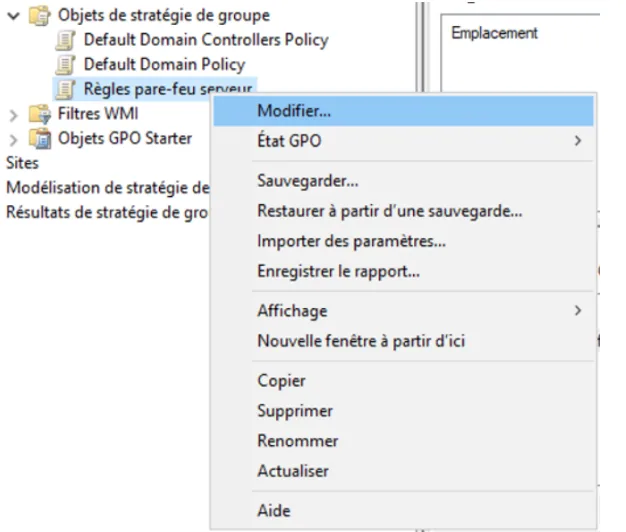
3. Find the location
Now that we are looking inside this new Group Policy Object, all we have to do is work out where the right location is so that we can create new firewall rules. When you look at the rules on the local computer itself, everything is listed under a Windows Defender Firewall with Advanced Security heading, and that is found in Computer Configuration | Policies | Windows Settings | Security Settings | Windows Defender Firewall with Advanced Security | Windows Defender Firewall with Advanced Security:
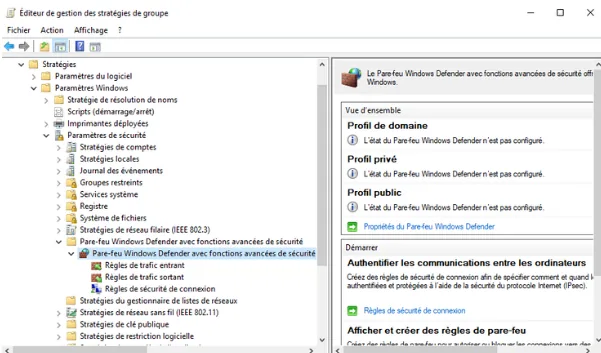
As you can see, this is also the place to go when you want to make sure that certain firewall profiles, or the Windows firewall as a whole, are specifically turned on or off. So this is the same place you would go if you want to turn off the Windows firewall for everyone.
4. Set the state of the profiles and finish the creation
By clicking on the Windows Defender Firewall properties, you can determine the state of each firewall profile individually.
Once you have finished setting your profiles according to your needs, click OK and you find yourself back in the WFAS part of the GPO. Just as in the local WFAS console, you have categories for inbound rules and outbound rules. Simply right-click Inbound Rules and click New Rule… in order to start creating a rule directly in this GPO. Follow the same wizard you already know from creating a rule in the local WFAS console, and when you have finished, your new inbound firewall rule is displayed in the Group Policy Object.
This firewall rule is already making its way into Active Directory and installing itself on the computers and servers you have defined in the links and filtering criteria of the policy.
That is the end of this short series on the Windows firewall. And if you did not go through the "history" step before landing here, we strongly advise you to take a look at the article on the History and introduction to the Windows firewall.