
Password authentication is considered a weak mechanism. It can be subjected to various types of attack, such as dictionary attacks, brute force attacks or Man In The Middle attacks, as seen previously.
Configuring a more robust form of authentication is strongly recommended when setting up the SSH service, either with encryption keys or with two-factor authentication (2FA).
Step 1: Configuring key authentication on the SSH service
To begin with, SSH keys must be allowed in the configuration file:
sudo nano /etc/ssh/sshd_configLook for " PubkeyAuthentication " and give it the value yes:
PubkeyAuthentication yes
AuthorizedKeysFile .ssh/authorized_keys
For the changes to take effect, SSH must be restarted:
service ssh restartStep 2: Generating the SSH keys on the client
On the client machine we must generate a public key and a private key in order to authenticate on the SSH server:
ssh-keygen -b 256 -t ecdsa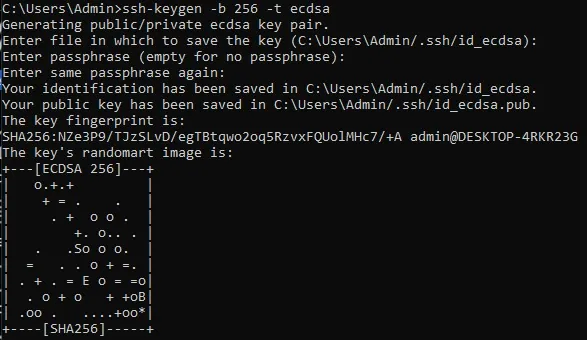
The ssh-keygen command has generated two keys:
- A private key under $home/.ssh/id_ecdsa, to which you alone must have access
- A public key under $home/.ssh/id_ecdsa.pub, which can be shared
We will now explicitly authorize the client machine to reach the server over SSH. The public key (id_ecdsa.pub) must be added to the authorized_keys file in the .ssh directory of the user chosen to connect (for example /home/$user/.ssh).
The simplest method is to use the ssh-copy-id command, but it is not available by default on Windows. We will therefore use the following commands on Windows, which copy the key into the authorized_keys file of your Linux user (~/.ssh/authorized_keys), even if that file does not already exist. It is essential, however, that the .ssh folder has already been created. You can create it with mkdir if necessary.
Copying the public key from the Windows client to the Linux machine:
type %userprofile%\.ssh\id_ecdsa.pub | ssh user@192.168.8.128 "cat >> .ssh/authorized_keys"To go further, password authentication can be disabled so that only key authentication remains.
Warning! If password authentication is disabled, you must make sure that key authentication is working, otherwise you may lose all access to the remote machine.
In the configuration file /etc/ssh/sshd_config, uncomment the PasswordAuthentication directive and set the parameter to no.
sudo nano /etc/ssh/sshd_config
PasswordAuthentication no
Once the file has been saved, the service must be restarted again for the change to take effect.
service ssh restartThe following recommendations are taken from those published by ANSSI, the French national cybersecurity agency:
- Check that the private encryption keys held in the /etc/ssh/ directory belong to the root user, with read and write access only
- Make sure that version 2 of the SSH protocol is the one in use
- The SSH server must listen on a port other than 22/TCP
- Check that file permissions are strictly enforced by SSH
- SSH access by the root user must be forbidden
- Implement privilege separation with a sandbox
- Forbid remote access by accounts that have no password
- Allow 3 successive login attempts in the event of a wrong password
- The service must display the last login information to the user on connection
- Allow only those users who are meant to connect to the server.