
If you are using an older computer with less than 4 GB of RAM, or simply if you want to make your computer faster and more responsive, this article may help you.
You should know that RAM modules are not everything.
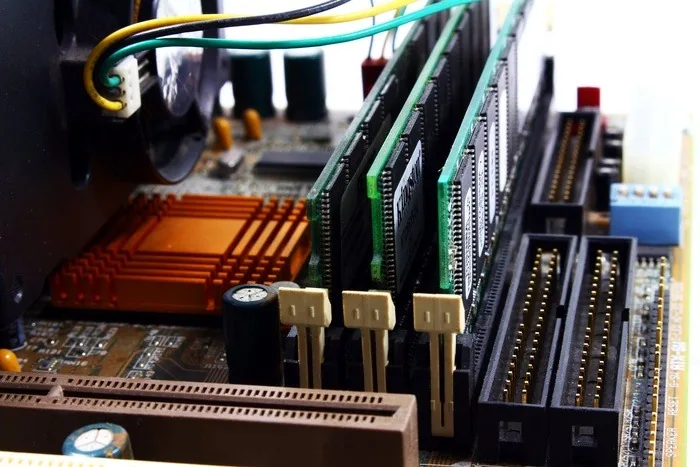
In Windows operating systems there is a memory called "Paging" or "Virtual memory". This memory is in fact a swap file through which data passes; this swap file is located on the hard disk or SSD drive on which your Windows operating system is installed.
By using virtual memory allocation in Windows, performance can be improved a little further. This guide is intended for all Windows users. You will see no change in your amount of RAM. It is simply a matter of telling Windows to use your free space to run tasks and speed things up.
I am using Windows 10 on my PC, but this works in all versions of Windows.
I would recommend this to anyone who has less than 4 GB of RAM.
Using the hard disk as RAM (free space)
Here is the step-by-step tutorial for turning your free hard disk space into paging memory . This will make your computer faster, but not dramatically so. Therefore, do not expect a large increase in performance.
** If you are using an SSD , I would not recommend setting your own virtual memory allocation, but simply setting it to automatic for the best results.
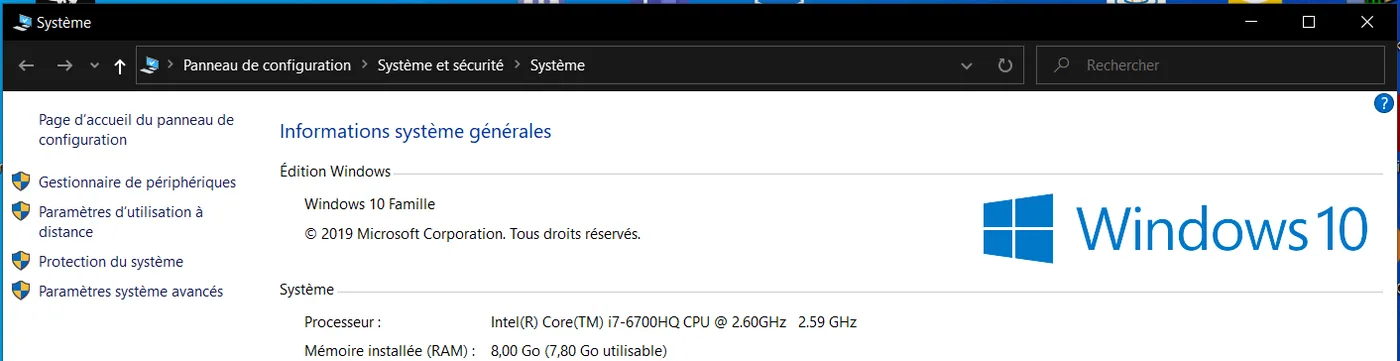
- Go to Control Panel -> System and Security -> System
- Then go to Advanced system settings
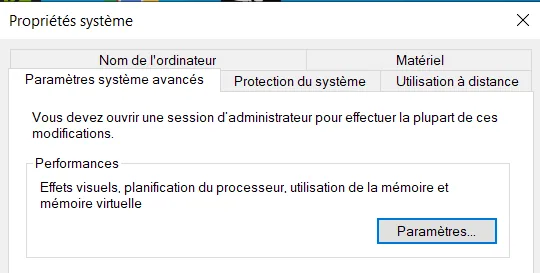
3. In the Performance category, click Settings
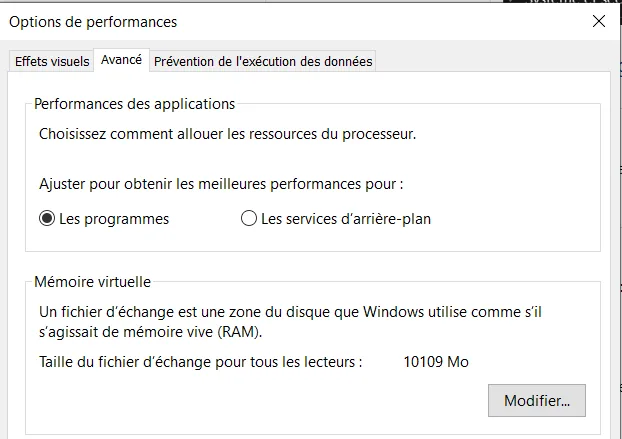
4. Go to the Advanced tab.
5. Then click Change
6. Clear Automatically manage paging file size for all drives.
In my case I have only one drive, but if you have several drives I advise you to choose preferably the one you do not use very often.
7. Select Custom size
Enter, for example, the recommended capacity in megabytes (MB) in the Initial size field, and the same capacity or a larger one in the Maximum size field.
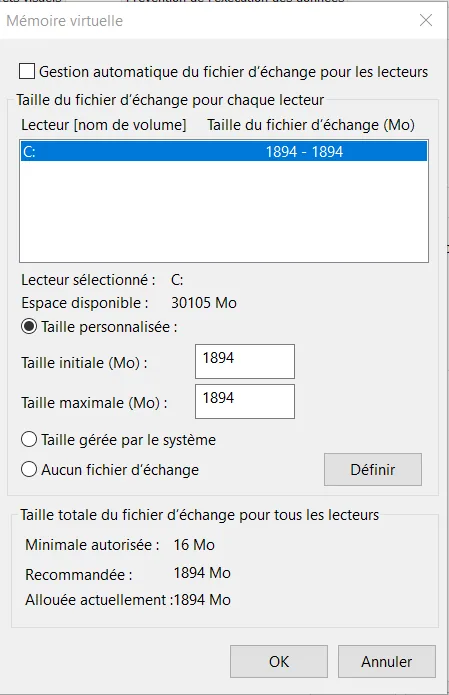
In my case I entered the size recommended by Windows.
8. Then click OK
9. Click OK again
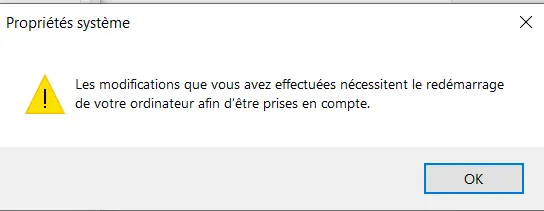
10. Then click Apply and then OK
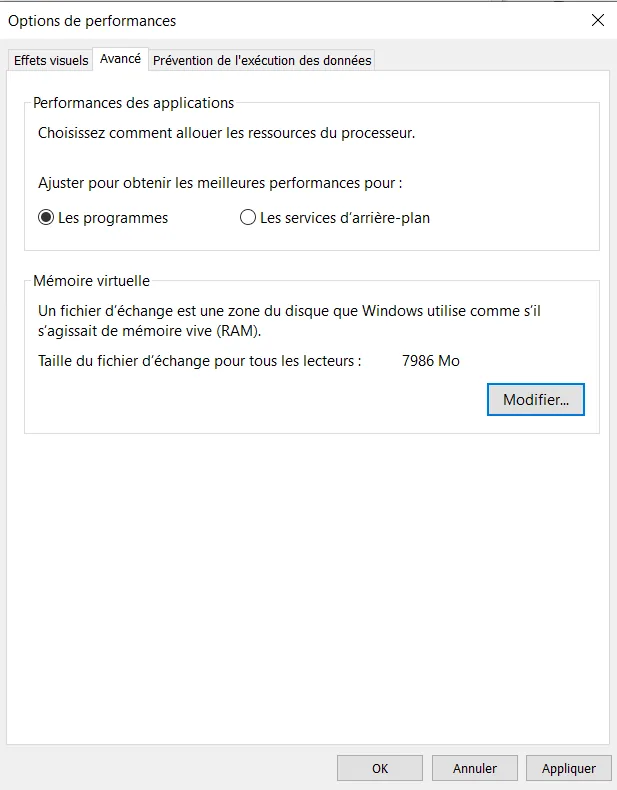
11. Click OK once more to exit.
12. Finish with Restart Now
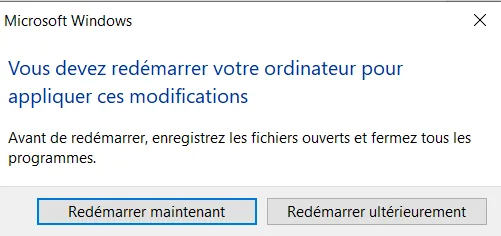
This is how you can use your hard disk as virtual RAM .
This will make your system a little more responsive and faster.
Conclusion
This is an easy guide to follow for increasing your RAM by allocating virtual memory. For example, it will increase your performance by at least 20% if you are lucky.