
DaRT is a set of tools that allows IT support staff to diagnose and repair computers showing startup problems, failures or unexpected behavior. Using DaRT, you can look for and repair the conditions that make a computer unusable or unresponsive, restore lost data and remove malicious software. The best part is that computers do not need to be online to be diagnosed and repaired with DaRT.
Download link for DaRT 8.1 and DaRT 10
Below you will find the official resources for DaRT
DaRT is part of the MDOP (Microsoft Desktop Optimization Pack), a free collection of tools for Microsoft Software Assurance customers. MDOP is also available for evaluation to Visual Studio Enterprise subscribers (formerly MSDN).
There are several versions of DaRT, so you need to choose the version according to the one of your operating system.
Dart 7.0 supports Windows 7 and Windows Server 2008 R2
Dart 8.0 supports Windows 8 and Windows Server 2012
Dart 8.1 supports Windows 8.1 and Windows Server 2012 R2
Dart 10 supports Windows 10 and Windows Server 2016 and later.
DaRT 10 includes the following tools:
- Computer Management (system information, event logs, disk management, services, drivers, etc.)
- Crash Analyzer (analyze crash dump files)
- Disk Commander (restore the MBR / GPT header, recover lost volumes)
- Disk Wipe
- Explorer
- File Restore (recover lost files)
- File Search
- Hotfix Uninstall (uninstall updates that cause problems)
- Locksmith (reset the passwords of local accounts, does not work with domain / Azure AD / MS accounts)
- Registry Editor
- System File Checker (SFC / SCANNOW)
- TCP / IP Config (configure the network manually when the PC cannot find one)
Building a DaRT recovery image on a CD, DVD or USB medium.
1. Download DaRT (ISO file)
2. Download and run Rufus
The Rufus software is used to create the bootable USB drive.
3. Configure Rufus to create the DaRT USB drive OR insert the ISO into the drive of a VM.
Then Rufus is set up in this way:
- Select the USB drive
- Then load the DaRT ISO file
- Leave the settings on GPT
- Start the creation of the USB drive by clicking on the Start button
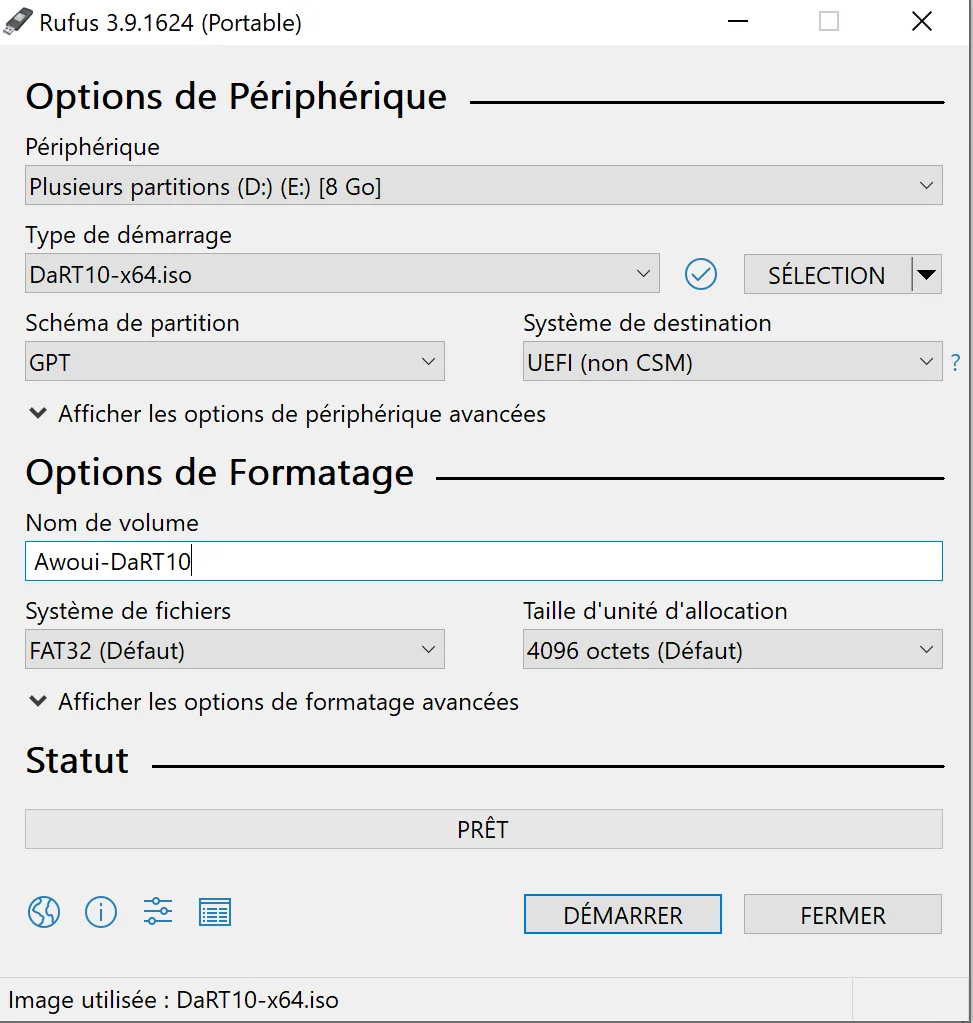
4. Boot the PC on the DaRT USB drive
Once the USB drive has been created and is ready, the PC can be booted on it.
You have to restart the computer, then tap a key specific to the brand and model of your PC (F12, ESC, etc.). This gives access to the BIOS/UEFI firmware or to the boot menu, in order to choose your removable medium (for example: the Kingstom, ScanDisk USB drive, etc.)
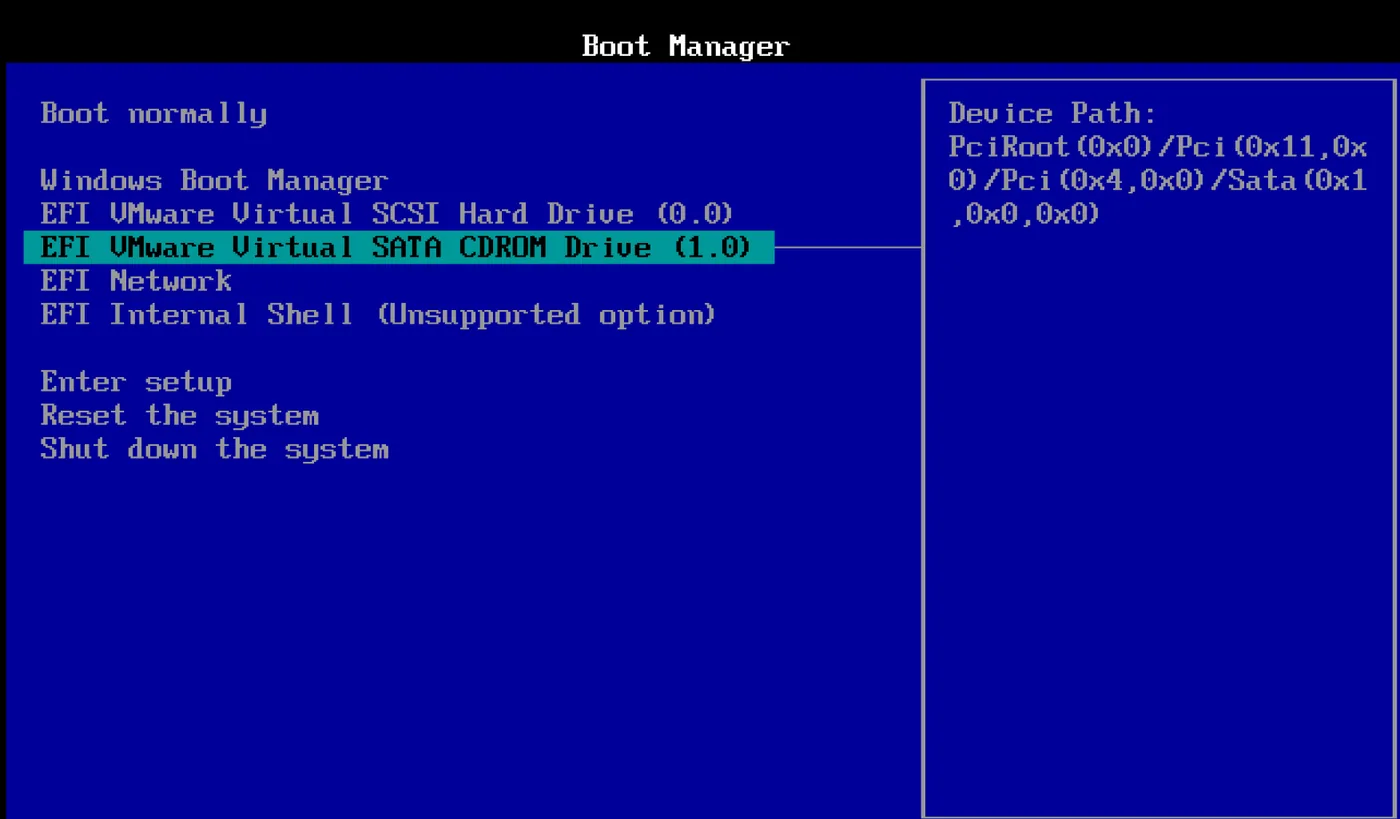
5. NetStart: reset the network:
When you restart on DaRT, you get the NetStart message below; click on Yes if you want the computer to have network access while DaRT is running.
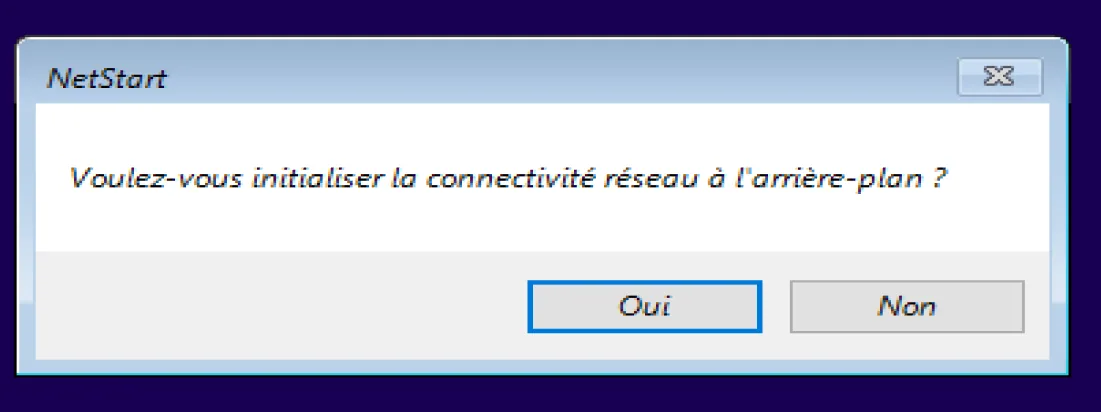
6. Configure the keyboard
Then, on the next page for the keyboard choice, select French:
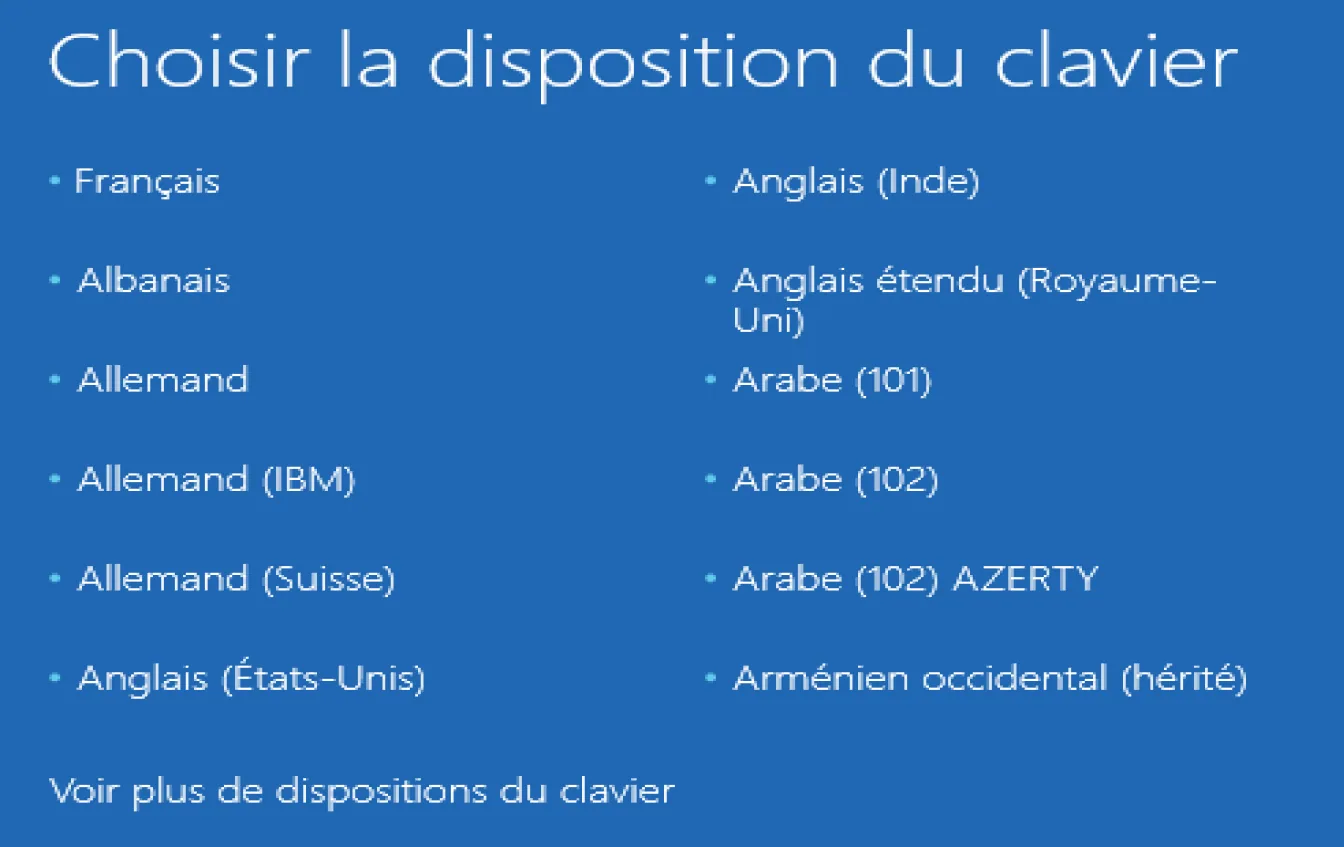
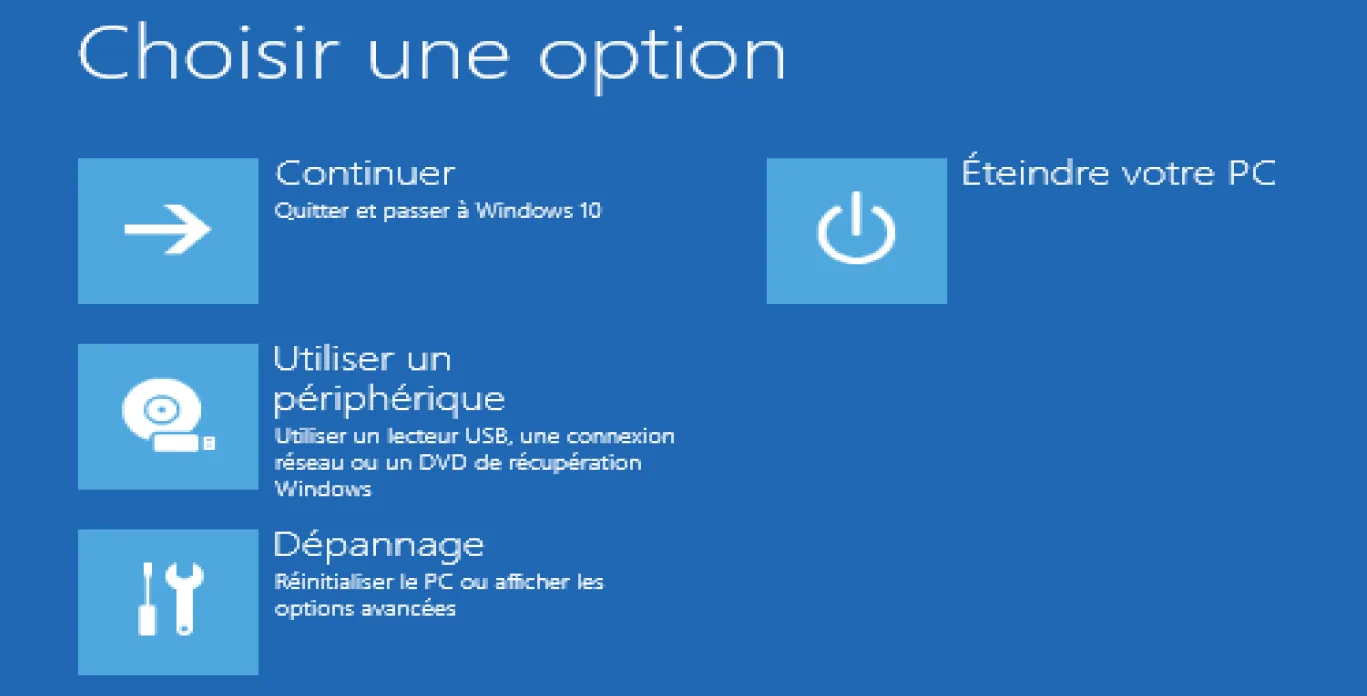
7. Open the troubleshooting options
Click on Troubleshoot
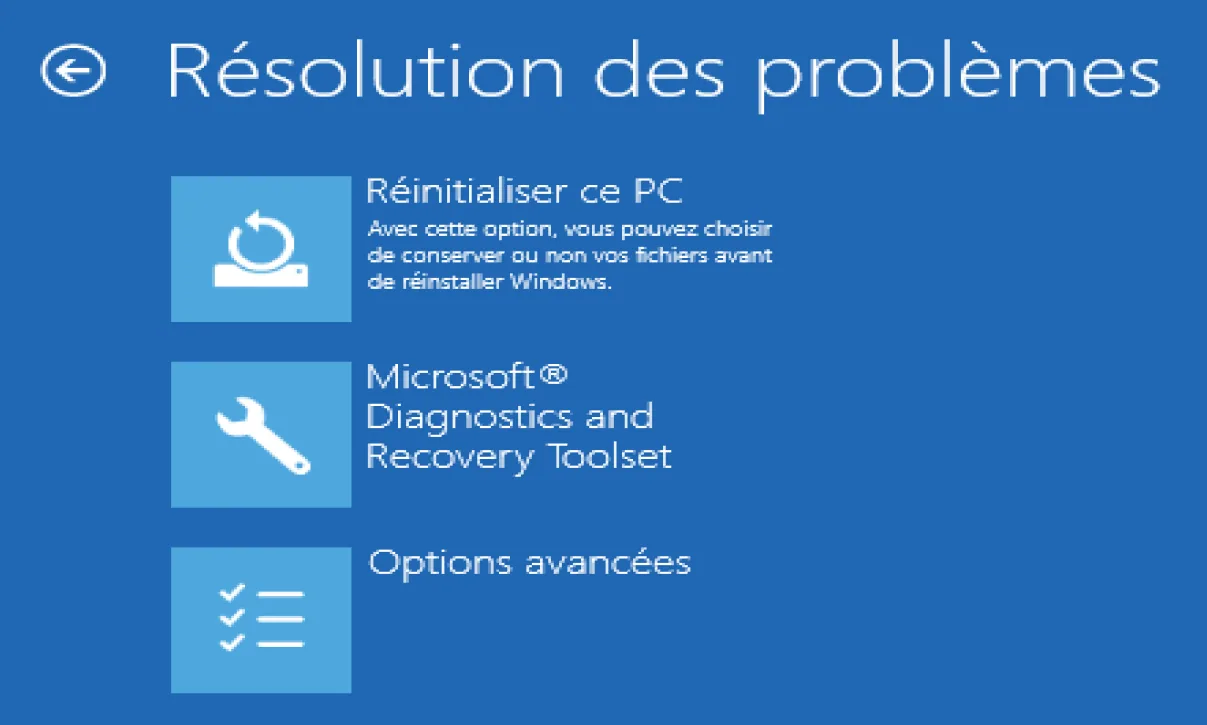
8. Open Microsoft Diagnostics and Recovery ToolSet
Choose Microsoft Diagnostics and Recovery Toolset
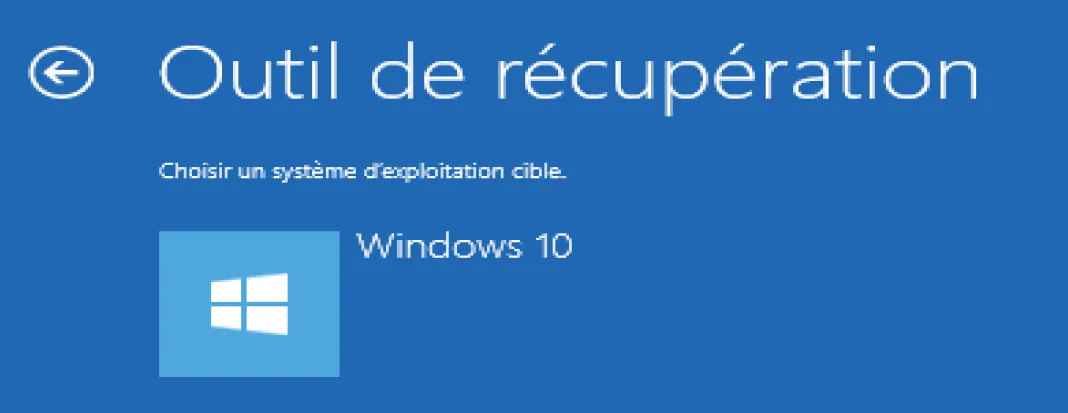
9. Select the version of Windows and of the operating system
The recovery tool then detects the version of Windows installed.
Click on the version of Windows you want to repair
10. The Diagnostics and Recovery Toolset menu
You then arrive at the Microsoft Diagnostics and Recovery Toolset menu.
You now have access to a few very practical tools for troubleshooting a computer.
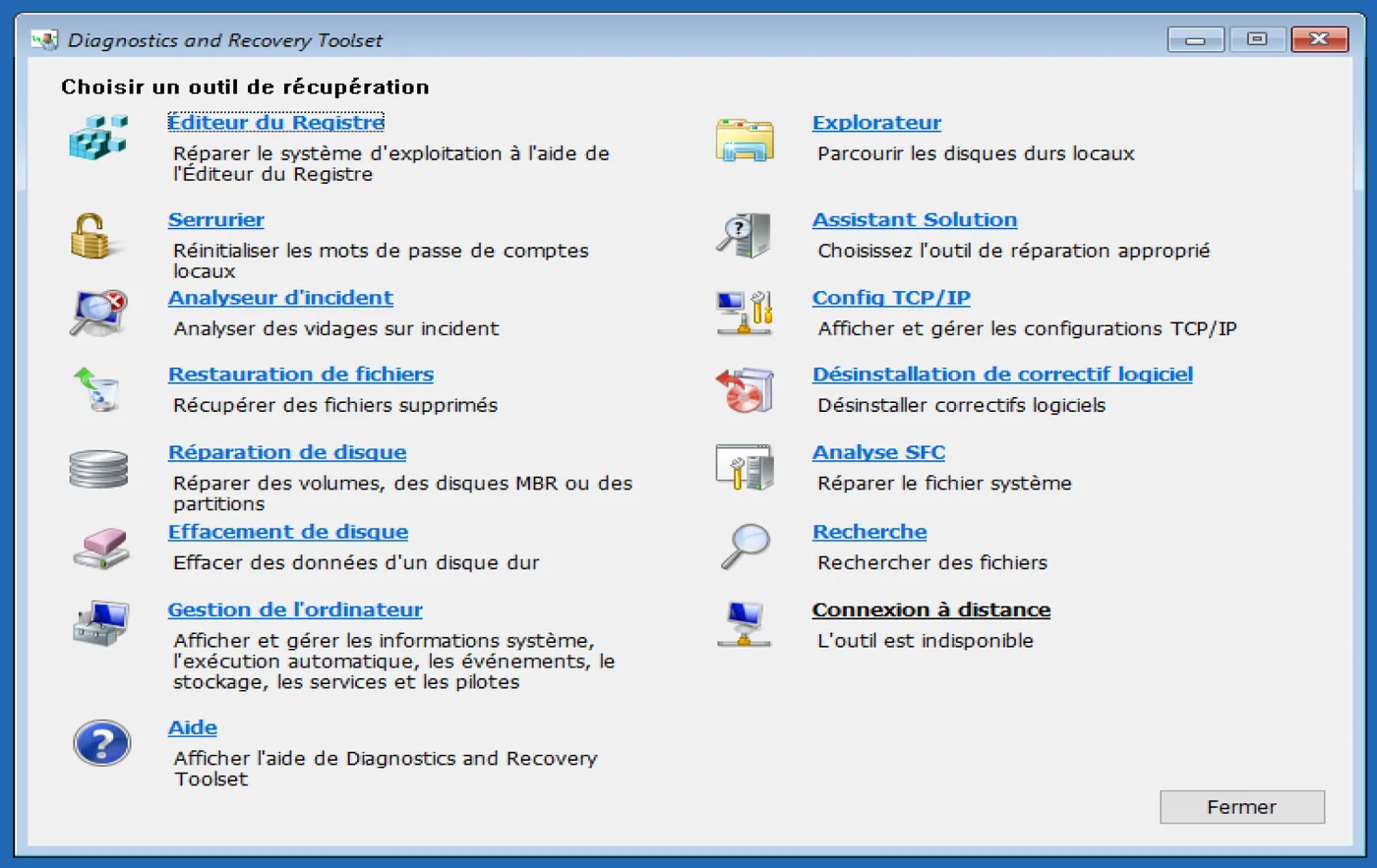
Here are a few examples of these DaRT features
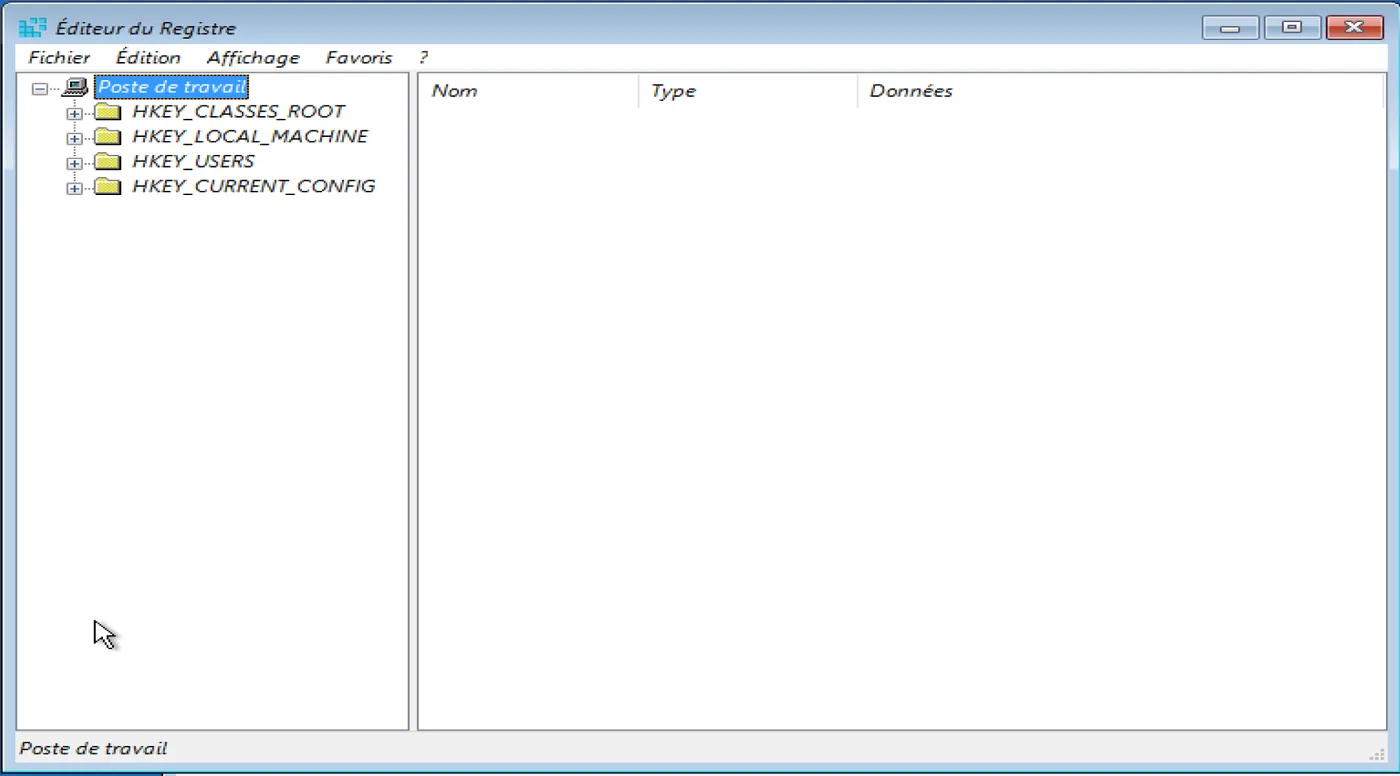
WINDOWS REGISTRY EDITOR
This is exactly the same Windows registry editor (regedit), which makes it possible to browse, modify or create a new key in the Windows registry.
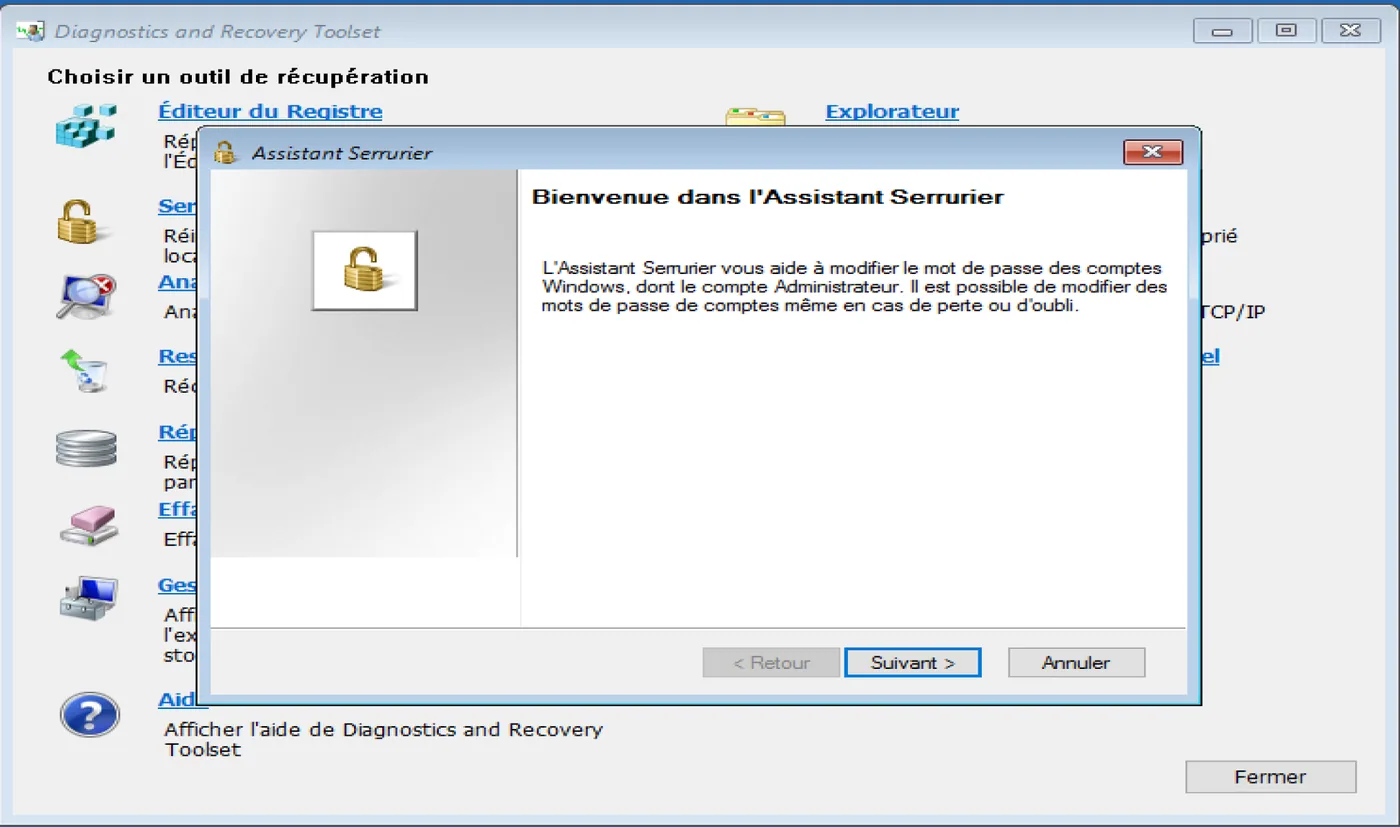
LOCKSMITH: RESETTING THE PASSWORD OF A WINDOWS USER ACCOUNT
The locksmith makes it possible to change the password of a Windows user account
- Select the Windows user account whose password has been lost
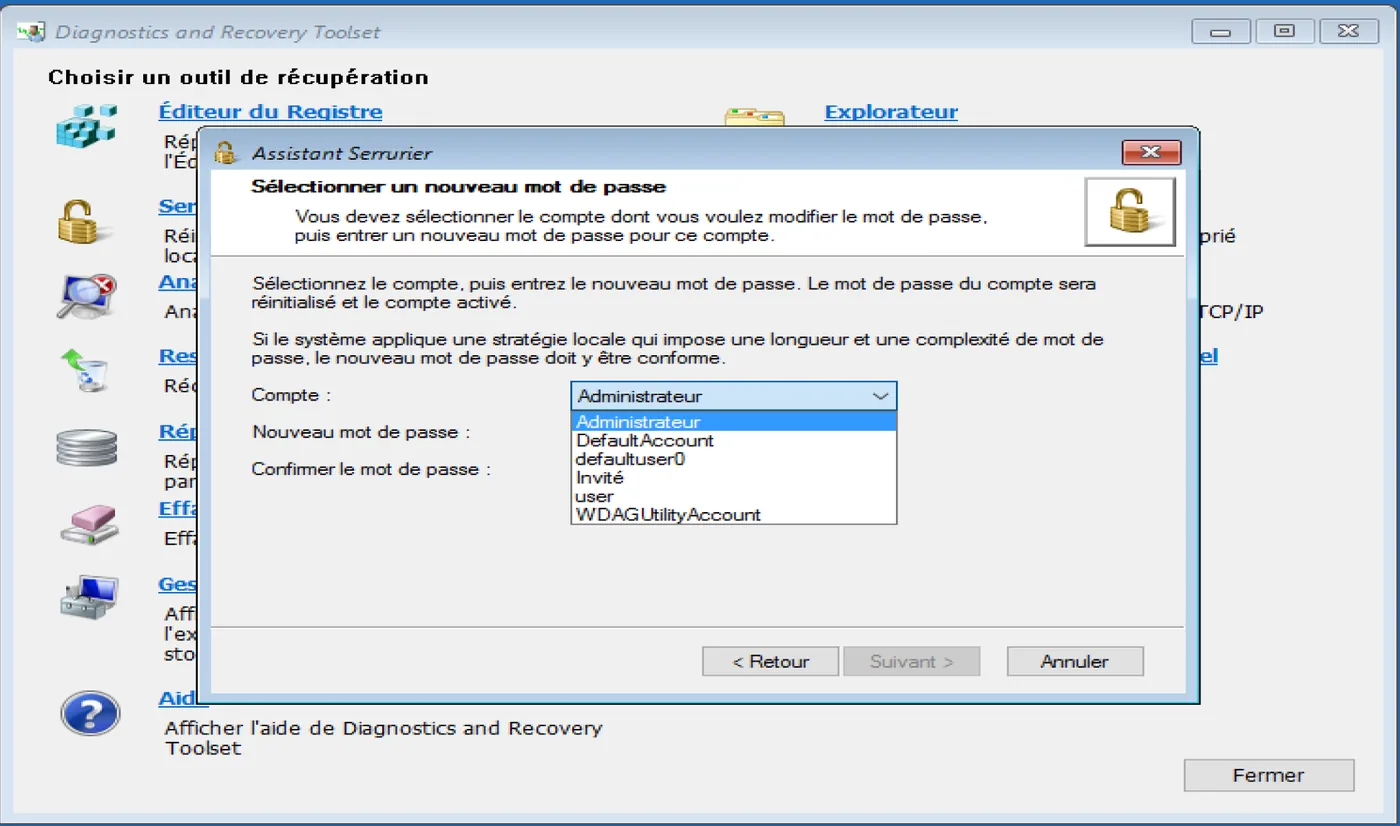
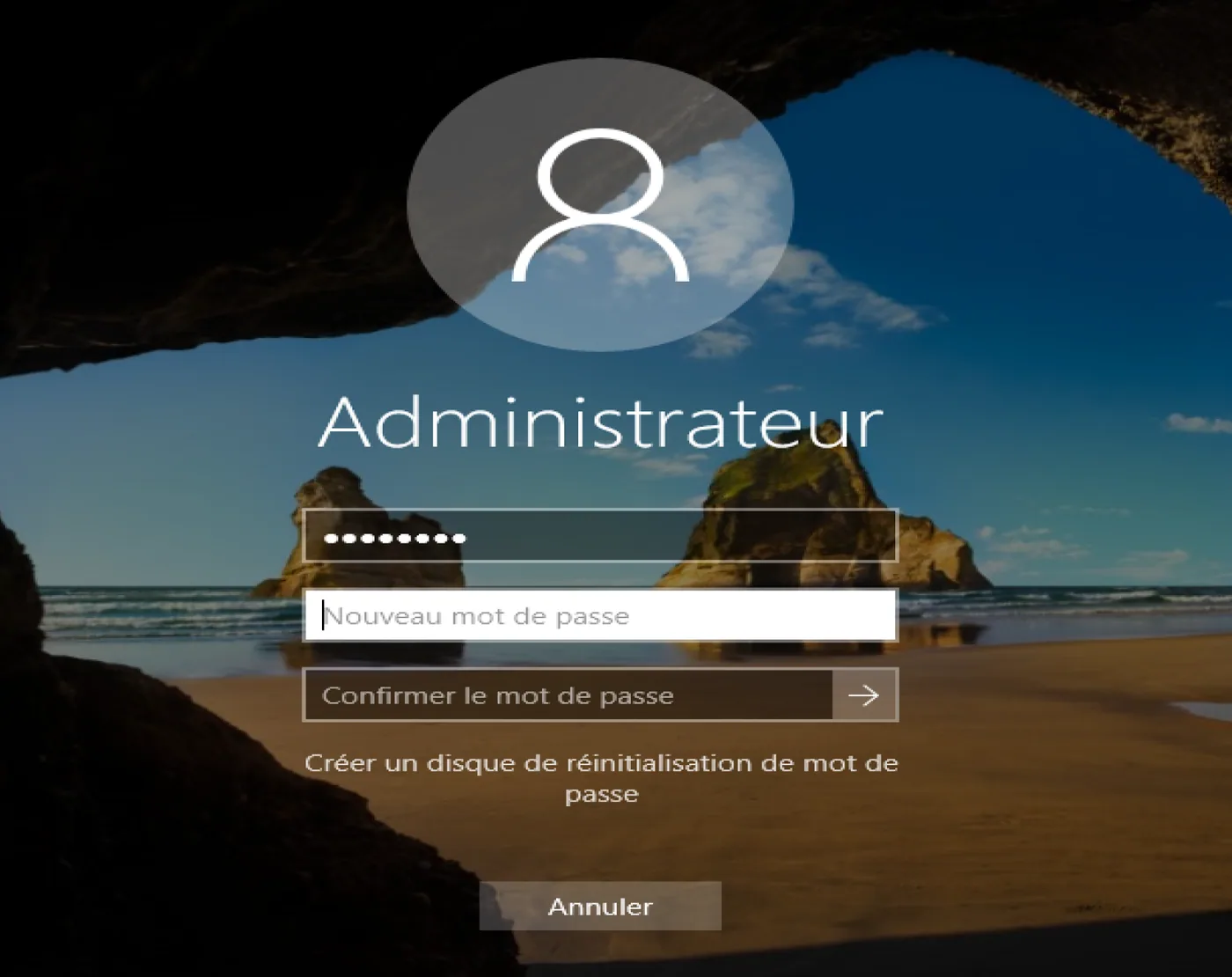
- Then enter a new password twice
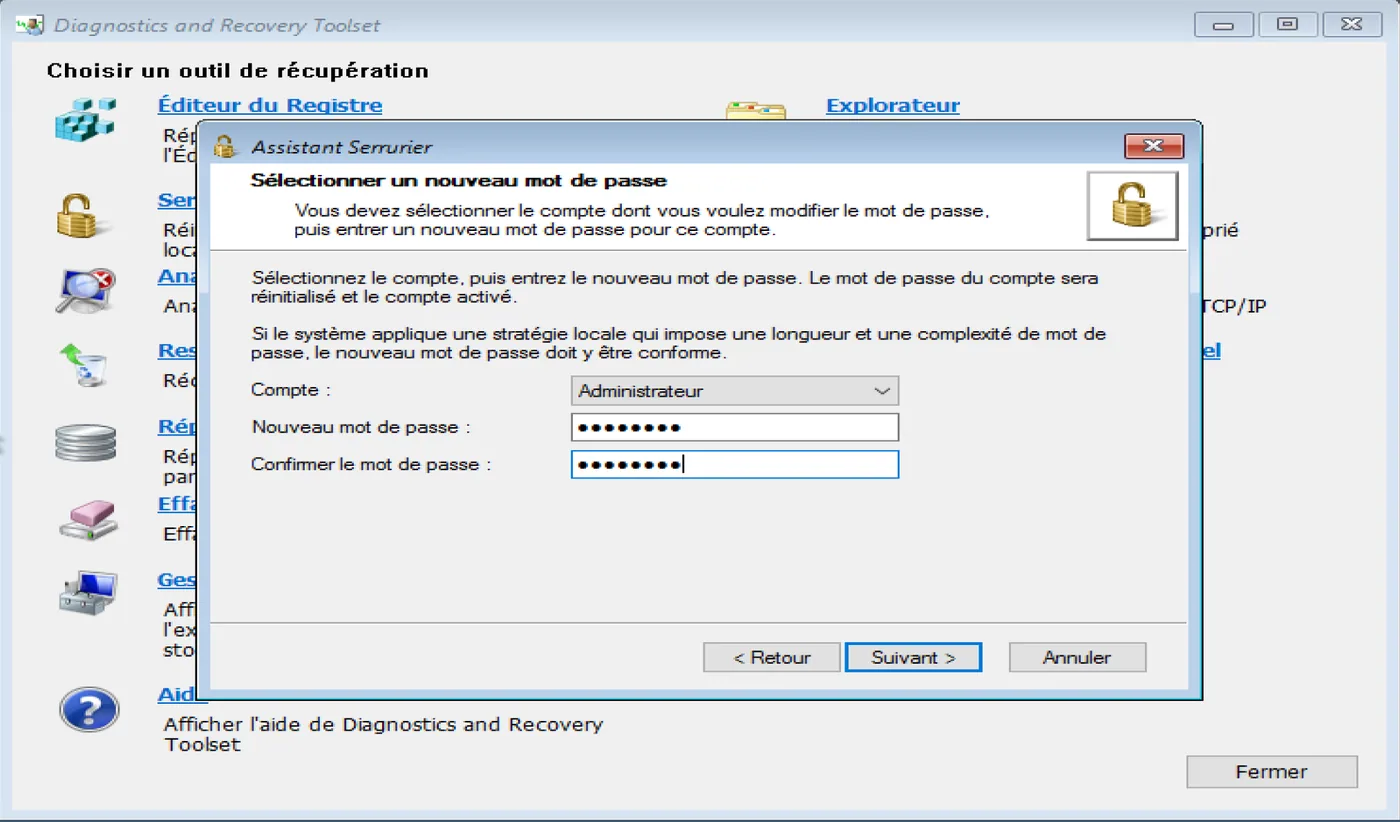
- Click on Next and Finish
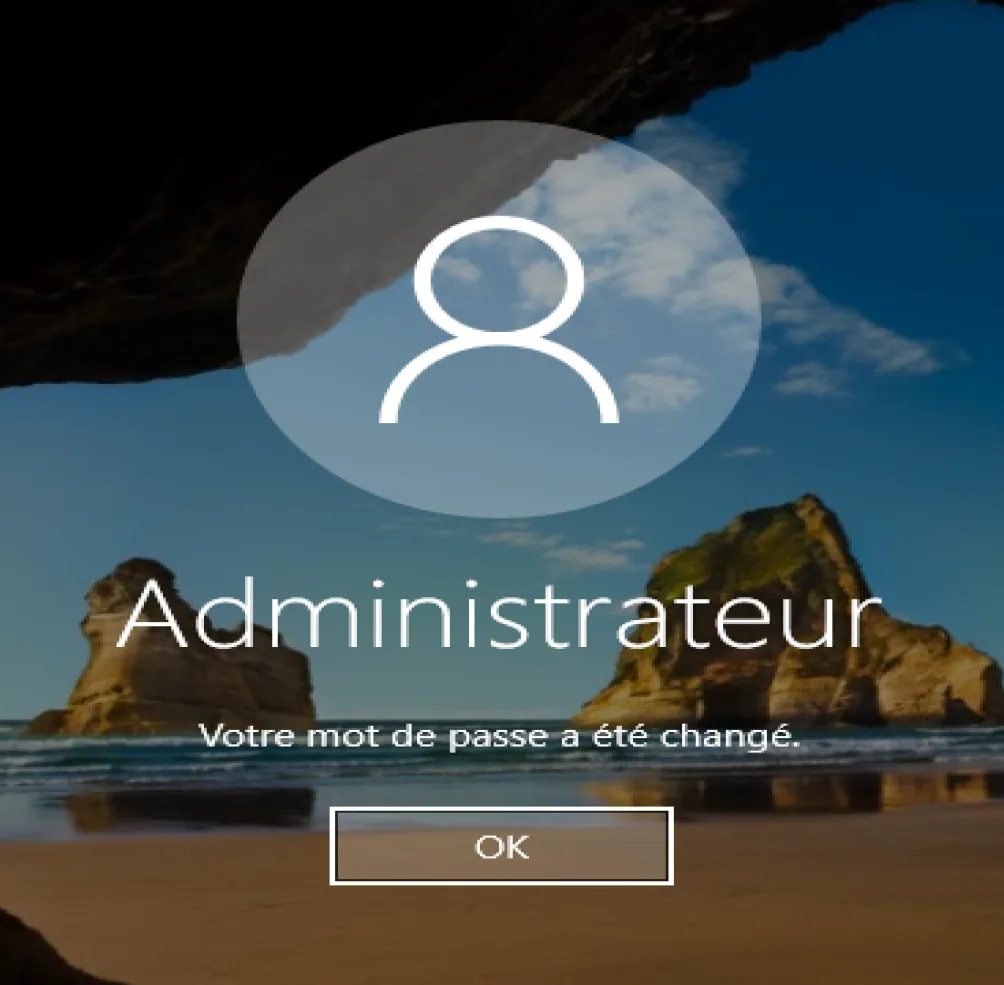
- DaRT has reset the lost or forgotten Windows password
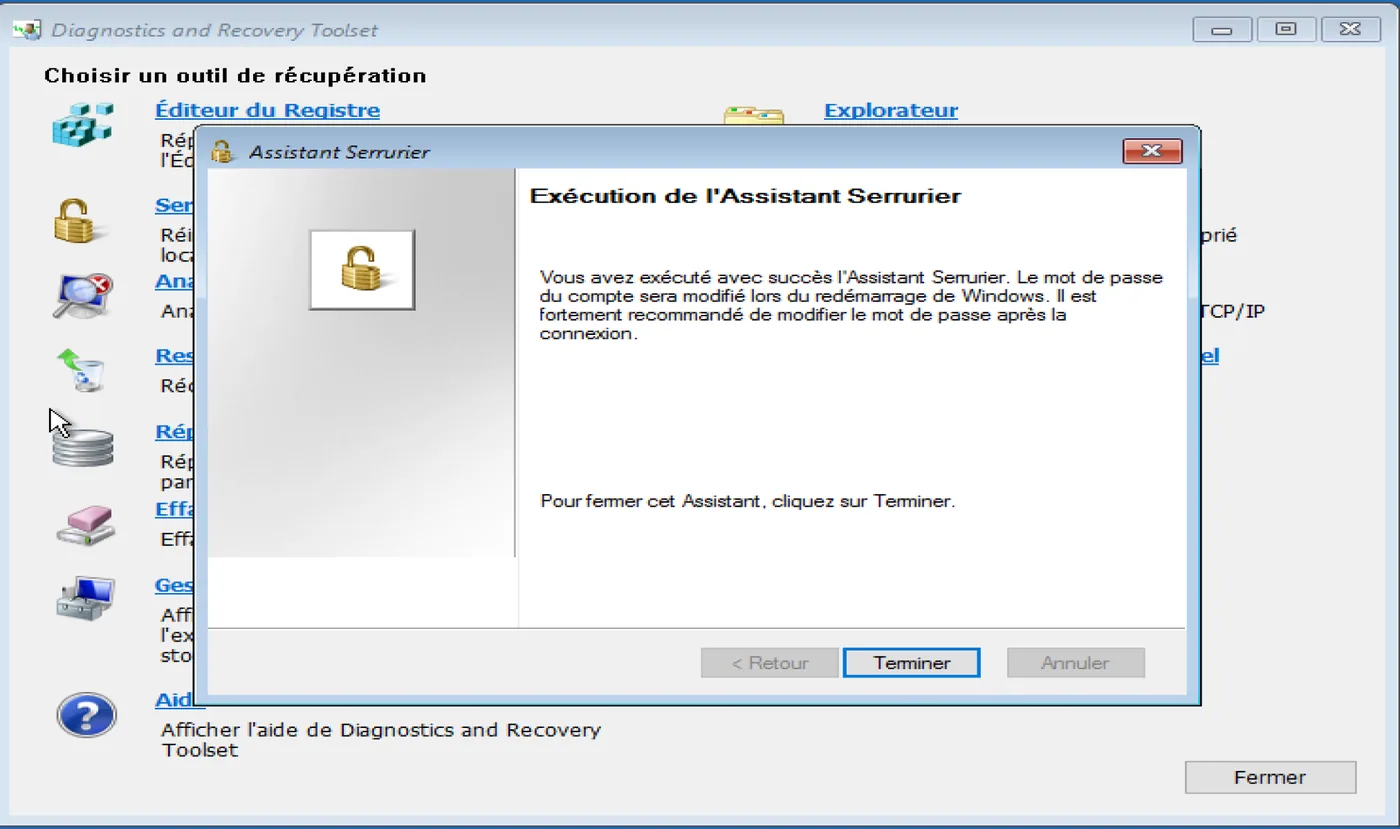
**The password must be changed before the first sign-in
Documents were attached to the original article ("Microsoft Diagnostics and Recovery Tools (DaRT) 7.pdf"): the download widget of the former publishing platform did not carry them over into the archive, and they are not republished.